7.7 Certificate Error Popups in the Browser 
Certificates only work if the server and client both have certificates that have a common root signing. Often it happens that the server and the browser have certificates which are not mutually accepted, or that a certificate has expired.
For an example of how a certificate error behaves in a browser, log on to a test system with a browser, assuming this system has an erroneous certificate. If certificates are incorrectly configured, the error message Certificate Error: Navigation Blocked appears.
 (Example of certificate error message in the browser)
Choose Continue to this website (not recommended) to see a security report of the certificate error.
Choose Certificate Error (Security Report) and then View certificates for more information.
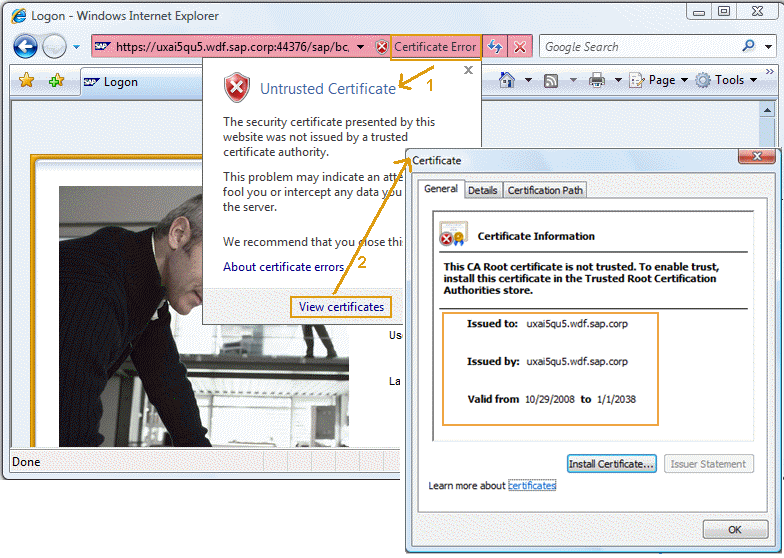 (Certificate information in the browser)
Similarly, when calling the same URL in the NWBC a corresponding error message will be displayed. For example, log on to a test system with the NWBC. If certificates are incorrect, a security alert appears. You can display further information about the certificates via View Certificates.
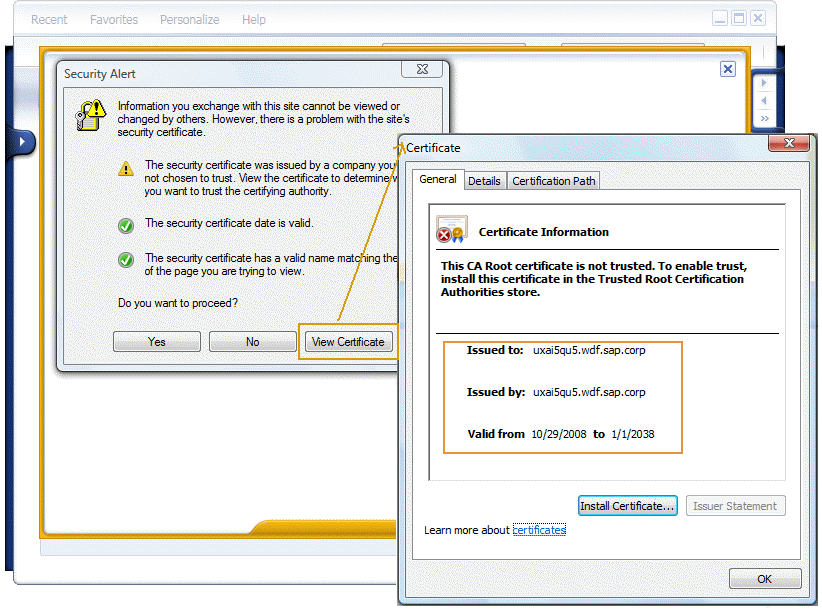 (Certificate information in NWBC)
There are a number of possible reasons for a certificate failure. Here is a brief summary of the common causes.
Problem |
Description |
Possible Solution |
|---|---|---|
The certificate has not been trusted. |
The browser did not trust the certificate issued by the server and required the user to intervene and determine if trust should be established or not. When users connect to your SAP system with their browser, a security alert appears indicating that the user does not trust the certificate issued by the server. |
Install the server certificate. Refer to your browser documentation for details. Alternatively, if you are using self-signed certificates, consider using a certification authority (CA) signed certificate. This prevents the situation where all users must face this alert. More information: Protecting the Application Server’s Keys |
The certificate has expired |
The server certificate has expired. The browser did not trust the certificate issued by the server and required the user to intervene and determine if trust should be established or not. |
It is recommended to obtain a new valid certificate. The exact procedure to use depends on the CA. For the SAP CA, follow the instructions provided by the SAP Trust Center Service at https://service.sap.com/tcs. |
The name on the certificate does not match the name in the URL. |
The browser has determined that the subject of the certificate issued by the server does not match the name used in the URL. This requires the user to intervene and determine if the user still wants to connect to the target system. |
Make sure the name in the certificate subject and the name in the URL match.
|
In summary, certificate errors in NWBC will be similarly observed when a browser is started against the same URL. Such errors are not related to NWBC, but they are problems in the configuration of the underlying digital certificate infrastructure (either server or client side).