9.2.1 Create a User Group and Assign a New User to That Group 
Log in to the IBM WebSphere Portal as administrator and choose Administration.
Select Users and Groups from the navigation bar on the left-hand side.
 (Users and Groups)
Enter the name of the new user group, e.g. EPM Users and choose OK.
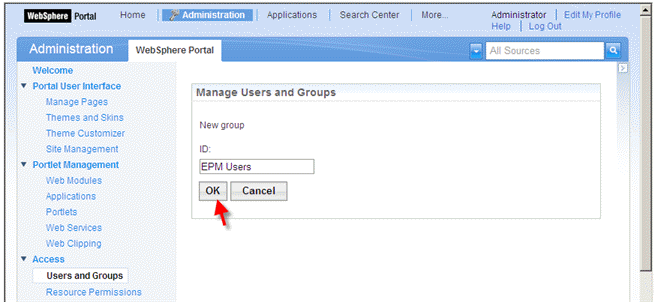 (EPM Users)
Choose New User to create a new EPM user.
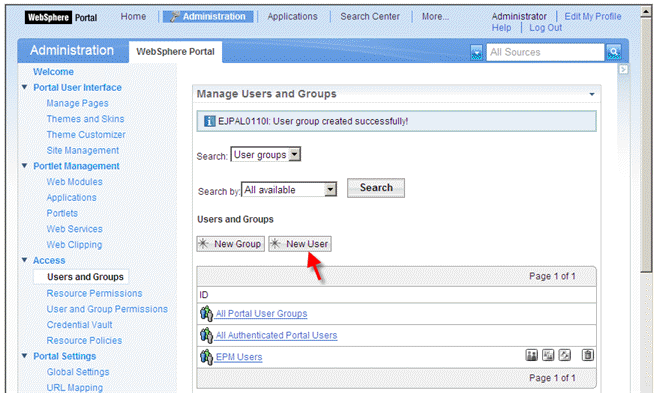 (New User)
Enter a user name, a password and last name and choose OK to create a user (e.g. user EPM, password abc123).
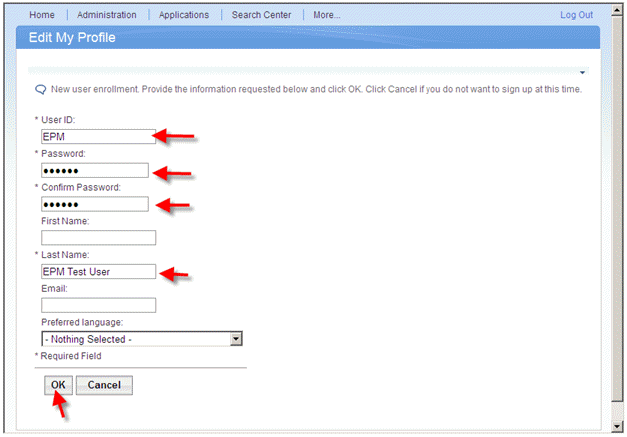 (create user)
Choose the EPM Users user group to assign the newly created user EPM to that user group.
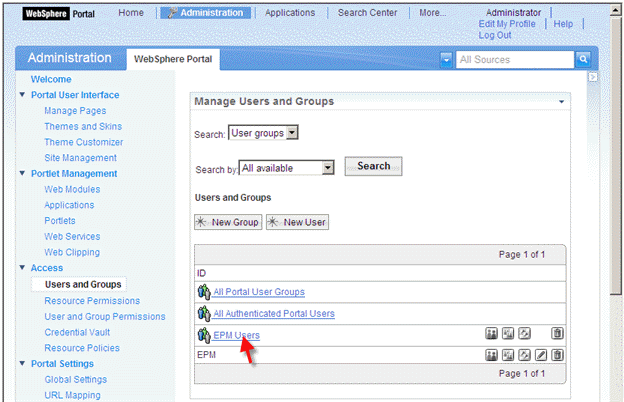 (EPM Users)
Choose Add Member.
 (Add Member)
Select Users from the Search drop down list, enter EPM (user id of the newly created user) into the Search input field and choose Search. In the result table select the EPM user and choose OK.
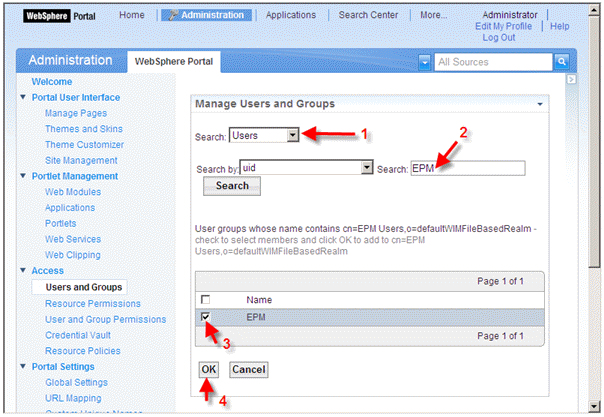 (EPM)
(EPM)