 Menu
Menu 
A menu (see the picture below) is a UI element that contains application-specific or object-specific functions. Menus can be menu bars such as the main menu bar in an SAP application, or detached menus such as context menus.
Main Menu Bar
The main menu bar is the top line of every primary SAP window and offers you the main application functions. It contains several pull-down menus that can in turn contain submenus.
Context Menu
A context menu displays a list of functions that are available for the objects currently focused or selected. It can contain submenus. The context menu opens up at the position where you call it up, for example next to the mouse cursor or the keyboard focus.
When a menu item has the focus, you can use Enter to activate the function of the item. If an item has an accelerator key (underlined character), you can choose Alt + underlined character key to activate the function.
When you choose a menu item, you trigger an action. After you have chosen the menu item, the menu closes again.
Access
To open the main application menu, choose F10 or Alt. To open the context menu with the functions available for a particular item, choose the context menu key or Shift + F10. This corresponds to a single click on the right mouse button.
Internal Navigation
Use Arrow left and Arrow right to navigate between the items in the main menu bar. To open the pull-down menu of a menu bar item, choose Arrow down. If a pull-down menu item or a context menu item has a submenu, you can open it using Arrow right or Enter from the menu item selected.
Exit
To leave a menu or to close a pull-down menu, choose Escape. To close a submenu and go to the main menu item, press Escape or Arrow left. You need to press Escape for each situation in a stacked situation.
Example
The picture below shows a graphical representation of a menu bar with multiple items. The y is underlined in the System item. This indicates that Y is the accelerator key.
To activate the System item, choose Alt + y.
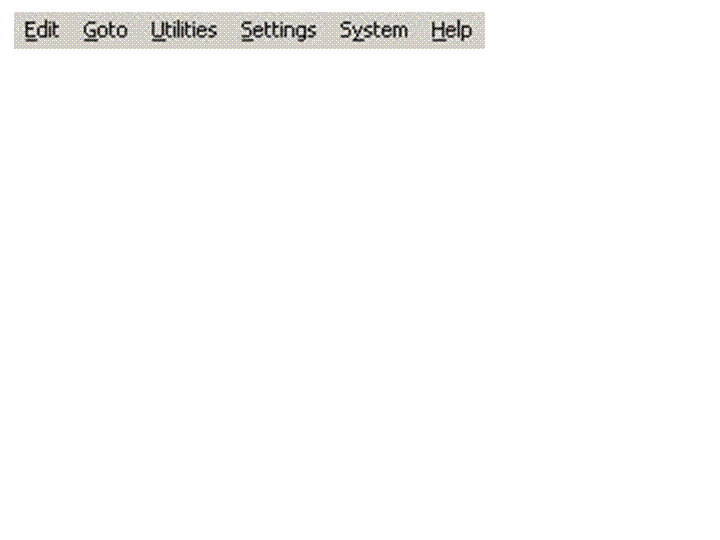
Example of the Display of a Menu Bar with Multiple Items