
 Executing Your Test Script

Introduction
When you are developing test scripts, you often want to run them by themselves. You can do this from the eCATT initial screen or from the test script editor. In practice, your test scripts are usually executed as part of a test configuration – you will do this later in the tutorial.
When you start execution, you are presented with the start options. You can specify display options, how eCATT reacts to errors, override default values, and so on. Some options are specific to particular commands – for example, the TCD and SAPGUI commands. These are grouped on the UI Control tab. You can even specify a different system data container. So long as the names of the target systems are the same as those use in the test script, you can test a different system landscape.
Procedure
1.
In the test script
editor, choose  .
.
The start options appear.
2. Change to the UI Control tab.
3. Select the Highlight All Called GUI Elements checkbox. This option is cosmetic but will help you see which elements are being selected during replay. Leave the other default options as they are.

4.
Choose .
The test script executes and the log is displayed.
5. Check the log.
Find the booking number (you can use Edit ® Find and search for Booking number).
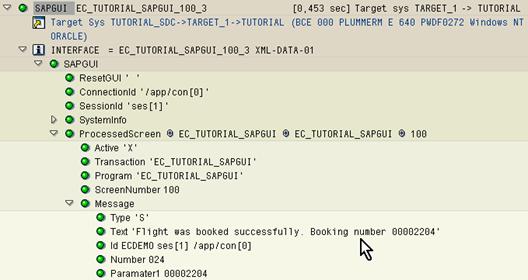
Compare it to the number that you generated earlier. This is a new booking.