3.4.3 Configuring Support Information 
This tab contains diverse settings that can help in trouble shooting situations.
Choose  Personalize
  Options...
  and then Support.
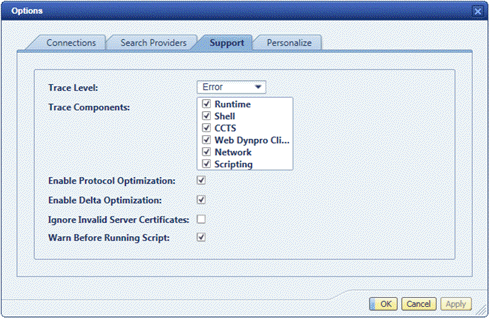 (Example of Support settings)
Name |
Description |
|---|---|
Trace Level |
A trace file contains information about errors occurring during NWBC runtime. Depending on the trace level set, the trace file also contains additional information that can help developers isolate a specific problem. Set the required trace level. Error is the default setting. Trace files are saved in a subdirectory of the personal files directory on the computer of the logged-on user under C:\Documents and Settings\<user name>\My Documents\SAP\NWBC\. Trace files are all called NWBC*, for example, NWBCClient.trc. Possible settings are:
|
Trace Components |
You can select or deselect the trace components which ought to be included in a trace. |
Enable Protocol Optimization |
This protocol optimization refers very specifically to the XML data stream that is used by Web Dynpro to drive the native rendering engine within NWBC. With this option, very specific caching features are enabled, allowing both the client and the server to systematically start to cache parts of XML communication to improve the bandwidth usage. It is recommended to leave this setting by default on, unless asked to turn it off in case of unexpected side effects. |
Enable Delta Optimization |
This option helps to improve performance and is activated by default. Delta optimization refers to view-based delta rendering that improves performance of user interaction in complex applications when only a part (view) of the displayed page has to be updated. Only the view that has been changed is newly rendered. If several views have been changed, the view rendered is the one containing the changed views and any views beneath it, which means that only a certain part of the page is replaced. For more information, see Delta Rendering in Web Dynpro ABAP. |
Ignore Invalid Server Certificates |
Part of the HTTPS connection setup, is the exchange of digital certificates between the server and the client. It can happen that the client receives a certificate from the server that can’t be accepted, because it has expired or because it can’t be validated. The user is informed to make a final decision on whether to continue with connection establishment or to break off the connection. With this checkbox it is possible to instruct NWBC to always continue with a HTTPS connection, even if the certificate should be invalid. By default, this checkbox is not set. Only set it for a trouble shooting analysis to eliminate possible certificate-related issues for trouble shooting connection related problems. |
Warn Before Running Script |
Activate that a warning message will be displayed when starting NWBC via a Visual Basic script. |