
 Assembling Your Test Configuration

Although you have executed a test script directly, the normal test case is represented by a test configuration. The test configuration references other eCATT objects to combine them into a test case. At the core of the test configuration is the test script. The importing parameters of the test configuration are those of the test script.

Normally a system data container is referenced, which overrides the system data container in the test script. Optionally one or more test data containers are referenced and, to these test data containers, you make links from the variants in the test configuration.
Procedure
1. With your test script open in the test script editor, choose Utilities ® Test Configuration ® Create Test Configuration. This is the quick way to create a test configuration.
2. In the dialog box, save the test configuration.
3. You are now in the test configuration editor.
4. Choose the Configuration tab. You see your test script and the system data container are already referenced.

5. Choose the Variants tab. You will see a default variant with parameters and data from the referenced test script.
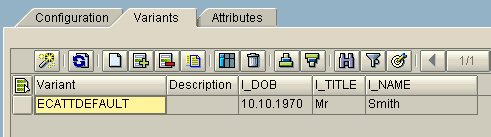
6. Create a new variant and enter the following data:
Variant |
I_DOB |
I_TITLE |
I_NAME |
VARIANT_1 |
10.10.1971 |
Mr |
Smith |

The problem with this manual method is that the values are part of the test configuration. As mention above, the preferred method is to reference data in test data containers.
7. On the Configuration tab, enter the name of your test data container TUTORIAL_TDC and give it an alias TD1.

8.
On the Variants tab, choose the Variant Maintenance Assistant  .
.
9. You see two panes. On the left pane are the variants in the test data container, and on the right pane are the variants in the test configuration.

10. Select the three variants that you want to add to the test configuration and choose Attach as Variant(s).
The new variants appear in the right pane.
11.
Choose  , then save your test configuration.
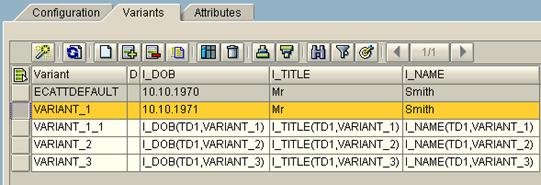
Observe how the test data from test data container is referenced not by the name of the test data container but by the alias that you entered earlier.
12. Now execute your test configuration. In the start options you will see there is a Variants tab where you can select variants to be executed, override default data, and so. Do not make any changes just now.

Result
The test script is executed once for each set of data.