
 Improving the SAPGUI Recording.

You have recorded a transaction but now you decide that the recording is not exactly what you want. You could simply delete the recorded commands and start again. However, you may have invested considerable effort in recording and parameterizing the transaction and you do not want to lose what you have already done.
What you can do is use the SAPGUI (Attach) option. You execute the test script until it reaches the part where you want to add the new commands. There are several ways to make the execution stop at the relevant part (for example, using breakpoints), but for this exercise, we will use a simple method that is easier to demonstrate.
For this exercise, you will read the value of a screen field, of the Customer Details section, into a parameter. During the original recording, you did not try to record the initial value of the field, nor did you use the GETGUI command. Now you want to enter a GETGUI command in the middle of the transaction.
Procedure
1. Open the test script TUTORIAL_TS in the test script editor.
2. Comment out the commands after the place where you want to enter the new command.
If you have used too coarse a granularity and the desired place is part way through a command, you can split the command first.

3.
Choose  .
.
4. In the start options for the SAPGUI command, select Do Not Close Created Sessions.

5.
Choose .
The transaction replays to the end of the script then stops. Both the eCATT session and the session where the replay took place remain open.

6. In the eCATT session, go back to the test script editor and place the cursor where the new command is to go – that is, after the last uncommented SAPGUI command.
7. Use the Pattern function to create the SAPGUI (Attach) command.

8. Select the recording granularity. As you are only going to enter a single GETGUI command, the granularity is not important.
9. In the Select Sessions dialog, select the session to be recorded – there should only be one displayed.
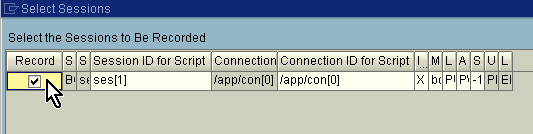
10. Choose Enter
The Recording Running dialog box appears.
11. Choose Insert GETGUI Command.
12. Go to the other session and click on the field that you want to get the value of.

The Selection of Properties and Methods to be Recorded dialog opens.
13. Expand the Get node until the value from the field is visible.
14. Select the Text checkbox.

15. Choose Insert and Exit.
16. In the Recording Running dialog box, select Close Recorded GUIs and then choose End Recording.
17. Open the command interface of the GETGUI command and double-click the Text node to display the Value node for editing.

18. In the value field enter the parameter name V_CUSTOMER and create it as a local variable.
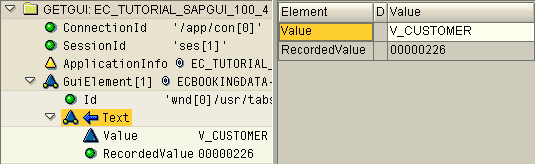
19. In the command editor, enter LOG ( V_CUSTOMER ). This is just to demonstrate that the value read from the field is available for other commands to use. Uncomment all the commands.

20. Execute the test script.
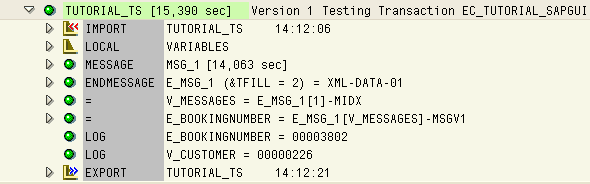
21. Expand the log to view the GETGUI node.

Result
You have taken an existing recording and added a new command to it. You used a GETGUI command to read the value of a field into a parameter.