 Operators and Functions in Macros
You enter functions in the following manner:
Drag and drop the operator/function icon
 to the relevant line in the macro work area. A dialog box appears.
On the bottom line, choose the function you want to insert. The function automatically appears in both lines. On the top line you can add alpha-numeric arguments to the functions.
 Note
NoteFor more details of individual function see the following topics according to the type of function you want to use:
Mathematical Operators and Functions
Functions for InfoObjects and Planning Books
General and Planning Table Functions
End of the note.If you want to add another macro element (an icon) to your macro, do not close the parentheses (in other words delete the right-hand parenthesis) and choose
 . Enter the macro element as usual. After you have made all the necessary entries, finish the function by adding
) as the last line.
. Enter the macro element as usual. After you have made all the necessary entries, finish the function by adding
) as the last line.
You can nest macro functions within each other. In the following example the macro step converts the value of row 1 from the internal unit of the current resource to the external unit contained in the resource master.
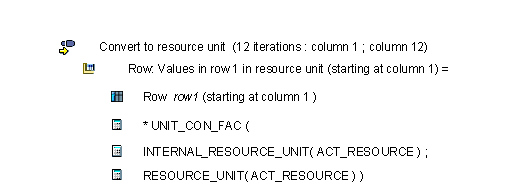
You can also define and use your own functions. For more information about these user functions, see Menu Functions in the Macro Builder .
Entry Conventions
An argument is an input parameter, an independent variable, in a function. Enter character-based values of an argument in quotation marks and numerical values of an argument without quotation marks. Character strings inside quotation marks cannot have any blanks.
Note
Use a semicolon as a separator between the arguments of a function. Leave no space between a function operator and a parenthesis, but insert blanks before and after arguments in the parentheses; for example,
ROUND( X ; Y )
ROUND( SUM ( X ; Z ) ; Y )
$ represents a fixed coordinate.
Changing Attributes
Most of the functions available are value functions, controlling the numbers or values stored within APO. However, SAP SCM also delivers a further category of functions, that is the attribute-based functions. These functions do not control the stored values but rather the properties of the data views. For instance, these functions change the color of a cell, row, or column, hide or unhide rows or columns, or change the ready-for-input status.
If you want to use one of these functions, you must change the
Change scope
field on the attributes of the result (row, column, or element) to
Attributes.
Note
The results of attribute functions are not persistent in SAP SCM. In other words, if you turn a row’s background color green, this change is not stored permanently by the system. So when you make a new selection in interactive planning or leave and reenter the planning view, that green color change will be lost. Therefore, if you want to see the results of the attribute change next time you enter the selection, you will need to rerun the relevant macros again. In some circumstances you may also need an additional key figure to save the results of actions from previous sessions or selections.
Note
It is not possible to modify the same result row with two or more attribute functions at the same time. The example below would lead to an error during the check. You must repeat the results row for each attribute function.

Similarly if you wish to use the attribute of a cell, column, or row in a calculation, you must change the
Data Source
field in the attributes of the argument to
Row attributes
or
Column attributes
.