Change Mode for Key Figures
Use
In Demand Planning (DP), you can use various change modes in macro definitions and in forecasting with which to check value changes in planning key figures.
Features
The following change modes are available in the macro definitions and in forecasting:
Change Mode |
Name in Macro Definition |
Name in Forecasting |
|---|---|---|
Value Change |
|
Not available |
Value change, adjust existing fixing |
|
|
Value change, take into account fixing and fix previously unfixed cells |
|
|
Value change, adjust fixing and fix previously unfixed cells |
|
|
Value change, unfix previously fixed cells |
|
|
Value change, adjust fixings on the modified level and take into account fixings on detailed level during disaggregation |
|
|
Value change, adjust fixings on the modified level and fix any previously unfixed cells, and take into account fixings on detailed level during disaggregation |
|
|
Initialization |
|
|
Redisaggregation |
|
|
Attribute change |
|
|
The individual change modes have the following effect:
Take into account or adjust fixing
For value changes to fixed key figures, the system differentiates between taking into account existing fixings and adjusting fixings. If the system is to take into account the fixing, it retains the values in fixed cells and does not change them. If the system is to adjust the fixing, it also changes values in cells that are fixed.
Fix previously unfixed cells
The system fixes all unfixed cells in which values have changed.
Unfix previously fixed cells
The system unfixes the fixed cells and then changes the values.
Redisaggregation
The system disaggregates the key figure values again while taking into account value changes and existing fixings.
This mode is necessary for recalculating key figures that were disaggregated on the basis of another key figure.
Initialization
The system initializes the aggregated key figure value and the relevant values at detailed level. Existing fixings are removed.
Attribute change
The system changes attributes of an element in the planning table. For example, it changes the foreground color of a cell, displays a quick info text for a column, or inserts an icon in a row.
Activities
To define a change mode in a macro definition, select a planning table element, for example, a row, in a macro book in the MacroBuilder. In the attributes for the element, select the required change mode in the
Change Scope: Table Values
or
Layout Attributes
area
.
For the forecasting, you can configure the required change mode in the planning area maintenance. To do so, choose

Extras

Forecast Settings
 and make the relevant setting in the
Basic Settings
area.
Example
The following figures show examples of how various change modes affect value changes in the planning key figures. All the examples refer to change modes with fixable key figures and fixable zero values. For this, you have chosen the
Key Figure to Be Fixed
type and set the
Fixable Zero
indicator for the relevant key figures in the planning area maintenance on the
Key Figs
tab page under
Details
. The calculation type for these examples is pro rata, in other words, a new value at aggregated level changes the values at detailed level proportionately.
The legend for the figures is as follows:

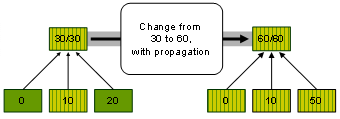
The initial situation for the following examples is always the same: the values 0, 10, and 20 at detailed level produce the value 30 at aggregated level. The cell for value 10 is fixed. In all the examples, the value 30 at aggregated level is subsequently increased to the value 60.
Value change, adjust existing fixings
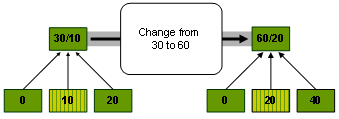
After the value change, the system increases the value 10 in the fixed cell to 20 and the value 20 in the unfixed cell to 40 at detailed level. The value 0 in the other unfixed cell remains the same. The system then fixes the previously fixed cell again.
Value change, take into account fixings and fix previously unfixed cells
After the value change, the system increases the value 20 in the unfixed cell to 50 at detailed level. The value 10 in the fixed cell and the value 0 in the other unfixed cell remain the same. The system then fixes all the cells.
Since propagation of fixing information is used in this example, the system performs the fixing at detailed level after the value change.
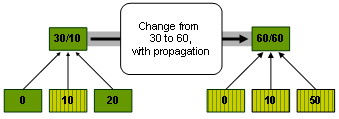
If you work without the propagation of fixing information, the value change produces the same result as in the previous example. However, the system performs the fixing at aggregated level for the value 60. (You can deactivate the propagation of fixing information by setting the
Do Not Propagate Fixing Information
indicator in the planning area maintenance).
Value change, adjust fixings and fix previously unfixed cells
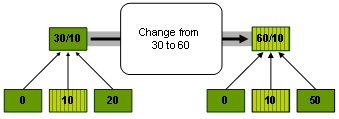
After the value change, the system increases the value 10 in the fixed cell to 20 and the value 20 in the unfixed cell to 40 at detailed level. The value 0 in the other unfixed cell remains the same. The system then fixes all the cells.
Since propagation of fixing information is used in this example, the system performs the fixing at detailed level after the value change.
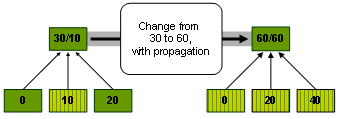
For the following two examples, the initial situation is always the following: the values 0, 10, and 20 at detailed level produce the value 30 at aggregated level. The cell of value 10 is fixed, as is the cell of value 30 at aggregated level. In all the examples, the value 30 at aggregated level is subsequently increased to the value 60.
Value change, adjust fixings on the modified level and take into account fixings on detailed level during disaggregation
After the value change, the system increases the fixed value at aggregated level from 30 to 60. For the disaggregation of the value change, the system takes into account the fixed cell with the value 10 and the therefore only increases the value 20 to the value 50.

Value change, adjust fixings on the modified level and fix any previously unfixed cells, and take into account fixings on detailed level during disaggregation
After the value change, the system increases the fixed value at aggregated level from 30 to 60. For the disaggregation of the value change, the system takes into account the fixed cell with the value 10 and the therefore only increases the value 20 to the value 50.
Since propagation of fixing information is used in this example, the system performs the fixing at detailed level after the value change.