 Additional Functions in the Graphic in Interactive Planning
You can use these functions to obtain a clearer overview of the data in the graphic view and to change the data. These functions are available if you use SAP Business Graphics, or the Chart Engine in interactive planning.
Prerequisites
You have loaded data for a selection.
You are in the graphic view.
Features
Hide a Curve
With this function you select a curve and then hide it by choosing the icon with the quick info Show/hide curves
. You can then select a curve to display again by choosing the icon once more. You can use this function to improve your overview of the data, especially
when working in a drilldown view where several curves may exist.
 Note
Note
These settings are not saved with the planning book. This means that the hidden curves reappear after you save your data. If you want to hide a key figure permanently, use the Key figure selection
function (icon in the workspace toolbar or in the user
settings).
Connect Two Points on a Curve
You can select two points on a curve that are not adjacent and join them with a straight line. The system overwrites any points with the interpolated values. You select the curve, click the first point, choose the icon with the quick info Selectpoint
(choose
the icon with the quick info Deselect All
to deselect), click the second point and choose the icon with the quick info Selectpoint
. You now choose the icon with the quick info Connect Selected Points
. The system
connects the two points with a straight line. It overwrites any points in between with the interpolated value.
Draw Trend Line
You can select two points as described above. When you choose the icon with the quick info Create trend line
and choose Add trend line
, the system takes the values of these points and all points between into account and calculates
the trend line using linear regression. You can use the Business Add-In (BAdI) Additional Functions for the Graphic in the Forecast
(/SAPAPO/SDP_FCSTCURV) to fit the curve to other functions. After you have created the trend line, you can replace the curve with the trend
line, by choosing icon with the quick info Create trend line
and then choosing Transfer trend line
. Similarly, you can discard the trend line by choosing Discard trend line
from this last menu.
Note
It is only possible to have one trend line in a graphic at any one time.
Smooth the Effects of Changing a Point in the Graphic
If you activate this function, and change a point in the graphic, the system smooths the surrounding points.

This is done using exponential smoothing as in forecasting.
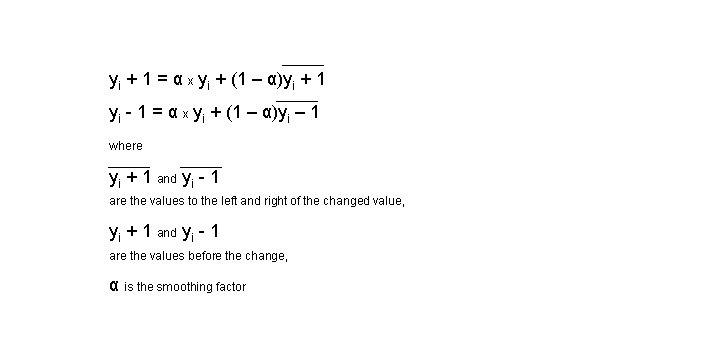
In this case y is always the value that has been changed.
You choose the icon with the quick info Activate/deactivate smoothing
to activate the function and to set the smoothing factor. You cannot save these settings.
Whenever these functions change values of existing data, the system always takes the read-only status of key figures into account. This means that if you have set a key figure to read-only, the values are not changed.