 Chart Designer
A tool for generating customizing settings such as colors or shading for business graphics. The settings can be saved as an XML file and used with the Chart Engine to determine the customizing of charts. The data for the charts would be supplied separately - the SAP Chart Designer does not supply the data. It is particularly useful for branding purposes so that a company can generate graphics with a uniform appearance.
When you edit a chart, you use the Chart Designer to view and edit the preview of the chart.
You can use the Chart Designer as follows:
Change the size of areas
You can modify the size of areas in the Chart Designer according to your requirements. For example, you may want to increase the size of the property area so that you can display all properties at once.
To do so, position the cursor at the intersection of two areas until the cursor changes into two parallel lines.
Click and pull the area to the required size.
Closing the Chart Designer
When you have finished editing a chart, or want to terminate editing, close the Chart Designer by selecting the
Switch Graphic Settings
pushbutton. Remember that the changes you made are not permanent until you save them by choosing theSave Graphic Settings
pushbutton.
Structure
Structure of the Chart Designer
The window of the Chart Designer is structured as follows:
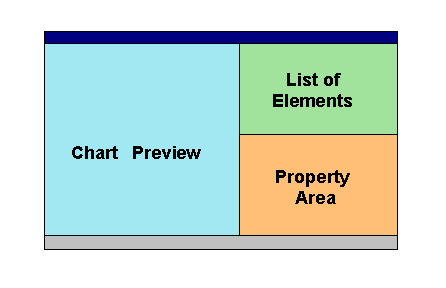
Chart Preview
The chart preview shows what your chart looks like with the properties that you set.
List of Elements
The list of elements contains all elements of a chart. These elements are partially ordered in logical groups. You can expand these groups by clicking on the plus sign in front of the group name. You click the minus sign to collapse the group again. Below the list of elements there is a short description of the element that is currently selected.
Property Area
You define the properties for an element in the property area. This area displays the properties of the element currently selected in the overview of elements. Depending on the element, you can select a value from proposed values or enter your own value (for example, a color). Below the property area there is a short description of the property that is currently selected.