 Entering HTMLBusiness Code

Entering HTMLBusiness Code
Use
You use this procedure to enter HTMLBusiness code when editing HTML templates in the HTML Source view of the
HTMLBusiness editor.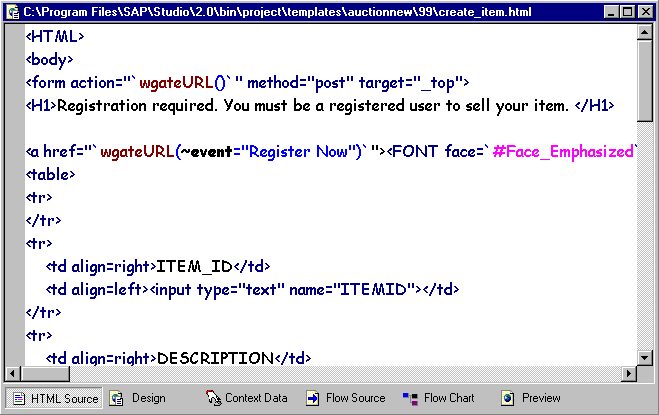
You can:
Prerequisites
You must have started the HTMLBusiness editor for the HTML template you want to edit.
Procedure
Highlighting HTMLBusiness Elements
When you are editing an HTML template, the HTMLBusiness editor recognizes and highlights HTML Business elements.
The following table lists HTMLBusiness elements and their default colors:
HTMLBusiness Element |
Default Color |
General HTMLBusiness |
Blue |
HTMLBusiness keywords |
Brown |
Constants |
Black |
Language resource keys |
Pink |
HTMLBusiness comments |
Gray |
Developer comments |
Green |
You can either use the default colors or
define your own colors.Getting Parameter Information on HTMLBusiness Keywords and Functions
You can get full parameter information for any HTMLBusiness keyword or function as you type. To do this, select the text, click the right mouse button, and choose Parameter information.

Suppose you want to select parameter information for the
If you select the text, you see the following information:
wgateURL(parameter = expression {,parameter = expression})
Displaying HTMLBusiness Function Definitions
If you write your own HTMLBusiness function, you can go to the definition of that function wherever it is located (it may reside in a different file).
To do this, select the text, click the right mouse button, and choose Goto definition.
If you change the definition of a self-written HTMLBusiness function:
However, the HTMLBusiness editor and all editor instances, which include the current file, recognize the new function created by the modification. This also applies to
Inserting HTMLBusiness Tags as you Type
When you edit HTML templates, you can insert HTMLBusiness tags as you type:
If you position the cursor, the opening and closing tags are inserted there, so you can enter text between them.
If you select some existing text, the opening and closing tags are inserted to enclose the selected text.
The HTML editor inserts the tags as summarized in the table below:
HTMLBusiness Tag |
HTMLBusiness Editor Action |
Backticks |
Inserts two backticks `` or |
Server Tags |
Inserts the tag <server></server> orencloses selected text. |
MimeUrl |
Inserts the tag mimeURL() or encloses selected text in the parentheses. |
Inserting Language Resource Keys as you Type
If you are editing an HTML template and you enter
# to denote a language resource key, the HTML Business editor recognizes this and automatically displays a list of language resource keys already defined for the currently active service (and theme, if relevant) in a scrollable pop-up window at the cursor position.As you type, the HTMLBusiness editor finds, and highlights, the nearest alphabetical match in the list of language resource keys. You can select the highlighted key or any other key in the list.
If you select a key from the list of keys, the HTMLBusiness editor inserts it at the cursor position.
When you enter the closing angle bracket for the tag, the HTMLBusiness editor inserts the closing tag automatically.
If the HTMLBusiness editor finds no more matches as you type, the window closes automatically.
To close the pop-up window at any time, click elsewhere on the screen.
If you update a language resource file by adding or deleting language resource keys, this is immediately reflected in the pop-up list that appears in the editor.