

 Caps / Floors
Use
A cap or floor is a series of interest rate options that are exercised when the option exceeds or falls short of a certain interest rate level. Caps and floors provide you with a type of interest insurance.
Features
Cap:
The buyer of a cap wants to hedge against rising interest rates. He/she agrees on an upper interest rate limit with the seller and pays a premium for this. If the reference interest rate rises above this agreed upper limit, the seller reimburses the difference to the buyer of the cap. If the agreed reference interest rate is not reached, there is no settlement payment.
Floor:
A floor is traded in the same way. The buyer of a floor wants to protect against sinking interest rates and agrees upon a lower limit with the seller. The buyer pays a premium for this. He/she receives a settlement payment if the interest rate falls below this agreed lower limit.
Activities
 Enter to go to the basic data screen for the transaction. On the
  Structure tab page enter the actual transaction data for the cap/floor.

Possible flow types for the premium of a cap: relevant for accrual/deferral or not relevant for accrual/deferral.
Upper limit for cap / lower limit for floor
Choose the  pushbutton to create nominal amount increases or decreases in the term. Repayment structures are created by means of nominal amount reductions. After you have changed the nominal amounts, the
  Create nominal changes pushbutton changes.
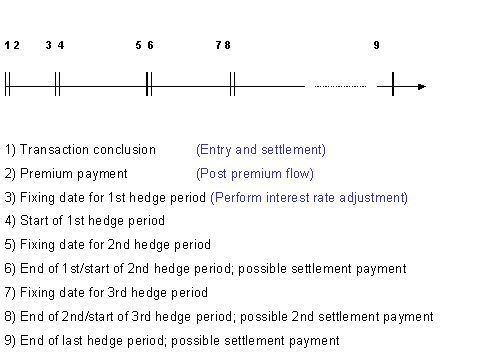
At the scheduled interest rate adjustment, you can either enter the reference interest rate manually or let the system read the data to calculate any interest receivable that is due.
On the Condition Details: Option Premium screen, you can generate several premium payments by entering a frequency.
The premium of a cap/floor can be accrued/deferred in the accounting area. In order to do this, however, you need to have made certain Customizing settings (for example, indicate the flow type as relevant for accrual/deferral). To calculate the accrual/deferral period, you have to enter an interest calculation method in the detail view.
 pushbuttons (interest, interest rate adjustment and option premium), see
For more information, see
 Save.
Save.