 Specifying File Viewers

Specifying File Viewers
Use
You use this procedure to specify a default file viewer for Internet Transaction Server (ITS)
files.The SAP@Web Studio allows you to specify the file viewer(s) you want to use for displaying the ITS files that make up services. This is useful if, for example, you want to display graphics in a particular graphics viewer.
If you predefine the applications you want to use as file viewers, you do not have to navigate to an application each time you want to use it to view a file.
When you start the SAP@Web Studio for the first time after installation, no default file viewers are defined.
Procedure
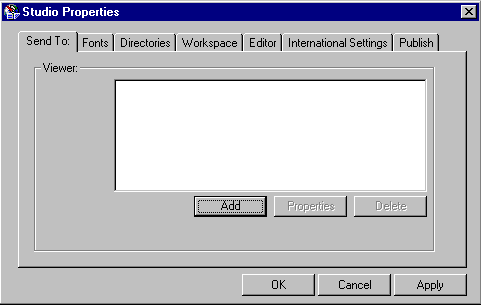
You can add a file viewer, change its properties or delete it, as described in the following table:
Function |
Procedure |
Result |
Add file viewer |
For information about command line arguments, see the documentation of the relevant file viewer.
|
The SAP@Web Studio adds the selected file viewer to its list of known viewers. You can also choose Apply instead of OK. Apply saves your settings, but leaves the Studio Properties dialog open. |
Change file viewer properties |
|
The SAP@Web Studio updates the properties of the selected file viewer. You can also choose Apply instead of OK. Apply saves your settings, but leaves the Studio Properties dialog open. |
Delete file viewer |
|
The SAP@Web Studio deletes the selected file viewer. You can also choose Apply instead of OK. Apply saves your settings, but leaves the Studio Properties dialog open. |