 Managing ITS Sites

Managing ITS Sites
Use
You use this procedure to manage Internet Transaction Server (ITS)
sites.You can:
When you define a site, the SAP@Web Studio automatically determines the default locations for storing files, depending on the protocol (connection method). Supported protocols include:
The default locations for storing files are listed by protocol in the following table:
|
Protocol |
File Type |
Default Location |
|
NetBIOS |
Non-MIME files |
\\<AGate server>\<ITS instance>_ITS |
|
MIME files |
\\<WGate server>\<ITS instance>_WWW\mimes |
|
|
FTP |
Non-MIME files |
ftp://<AGate server>/<ITS instance>_ITS |
|
MIME files |
ftp://<WGate server>/<ITS instance>_WWW/mimes |
If you do not want to use the default locations, you can define your own.

In ITS releases prior to 2.0, you must define the shared directories for the ITS server and Web server explicitly.
Procedure
You see the Site Definitions dialog box.
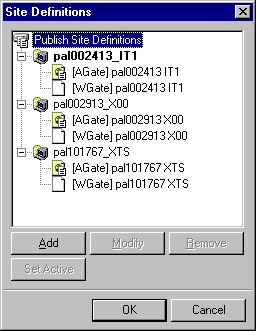
Creating Sites
You see the Site Definition Wizard.
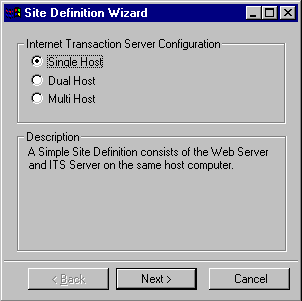
You return to the Site Definitions dialog box.
The Site Definitions dialog box closes.
All sites are automatically generated using the NetBIOS protocol.
If you want to use FTP as the protocol for one or more ITS servers or Web servers belonging to an ITS site, you must modify each one separately. To do this, see "Changing ITS Servers (AGates) and Web Servers (WGates)" below.
Adding ITS Servers (AGates)
You see the AGate Properties dialog box.
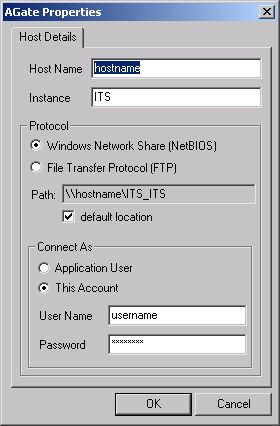
If you want to change the protocol and/or define a different location for storing ITS files, do one or both of the following:
When you change the protocol, the default location for storing ITS files changes automatically.
Please note that the format of default location for FTP connections is
ftp://<host>.<domain>/<root directory>
If you want to include a port number, you can change the format to something like
ftp://<host>.<domain>:<port>/<root directory>
You return to the Site Definitions dialog box.
The Site Definitions dialog box closes.
Adding Web Servers (WGates)
You see the WGate Properties dialog box.
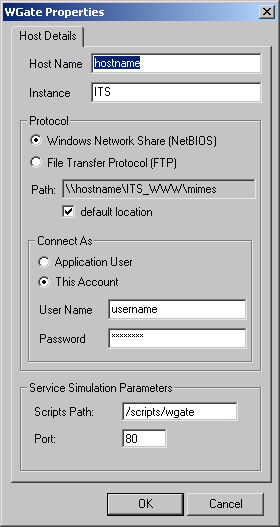
If you want to change the protocol and/or define a different location for storing ITS files, do one or both of the following:
When you change the protocol, the default location for storing ITS files changes automatically.
Please note that the format of default location for FTP connections is
ftp://<host>.<domain>/<root directory>
If you want to include a port number, you can change the format to something like
ftp://<host>.<domain>:<port>/<root directory>
You return to the Site Definitions dialog box.
The Site Definitions dialog box closes.
Changing Site Properties
You see the Site Properties dialog box.
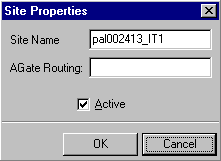
To make this site the active site, check the Active box.
You return to the Site Definitions dialog box.
The Site Definitions dialog box closes.
Changing ITS Servers (AGates) and Web Servers (WGates)
You see the AGate Properties dialog box or WGate Properties dialog box.
If you want to change the protocol and/or define a different location for storing ITS files, do one or both of the following:
When you change the protocol, the default location for storing ITS files changes automatically.
Please note that the format of default location for FTP connections is
ftp://<host>.<domain>/<root directory>
If you want to include a port number, you can change the format to something like
ftp://<host>.<domain>:<port>/<root directory>
You return to the Site Definitions dialog box.
The Site Definitions dialog box closes.
Deleting Sites, ITS Servers (AGates) and Web Servers (WGates)
You return to the Site Definitions dialog box.
The Site Definitions dialog box closes.