 Flow File Development

Flow File Development
Use
This process describes how to edit flow files with the
HTMLBusiness Editor.Flow files contain the flow logic that defines the dialog flow of HTML templates used in applications based on ITS Flow Logic.
Flow Logic
Flow logic uses a subset of eXtensible Markup Language (XML) elements to specify a series of logical transitions between one or more application states in flow files. A typical flow file consists of a set of states and events. States are triggered by events.
Each state contains a list of modules which are executable program units and can have different types. Valid module types include remote-enabled function modules (RFCs) and Business APIs (BAPIs). When an event triggers a state, the modules within the state are executed one after the other until the end of the module is reached.
Execution of a list of modules can terminate in one of three ways:
When the execution of a module is terminated, this either triggers another state or results in the loading of another HTML template and flow file.
For detailed documentation on flow logic and flow logic syntax, see the
 Flow Logic Reference.
Flow Files
Flow files are not displayed separately in the SAP@Web Studio’s Workspace – Project View, but you can tell whether a flow file exists for an HTML template by looking at the template icon:
HTML Template Icon |
Status |
|
Flow file attached. |
|
No flow file attached. |
Flow File Editing
There are two views for editing flow files:
Flow Source View
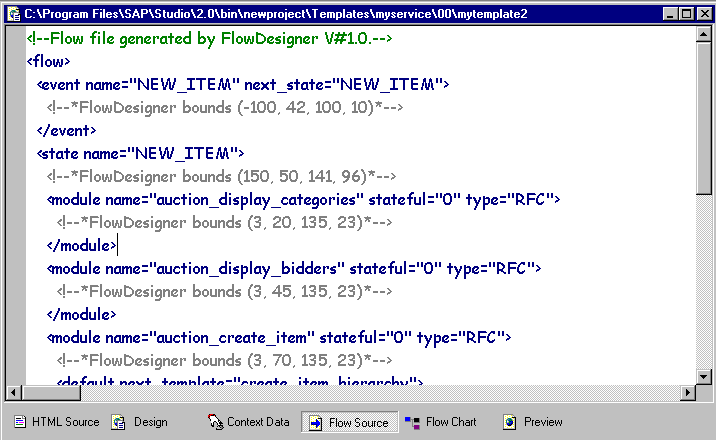
This view displays the actual flow logic or source code of the flow file.
Flow Chart View

This view displays a graphical representation of the flow logic and allows you to build flow files simply by dragging and dropping elements. Most (but not all) elements have equivalent elements in the flow logic
The Flow Chart view displays the following elements:
The Flow Chart view displays states as blue rectangles with round corners.
The state name is displayed in the upper left corner in a white box. If the name is too long to fit into the box, it is truncated and the missing part is represented by an ellipsis.
States correspond to the
The Flow Chart view displays events as small arrows to the left of states.
The event name is displayed to the left of the arrow. If the name is too long, it is truncated and the missing part is represented by an ellipsis.
Events correspond to the
The Flow Chart view displays the modules within a state as gray rectangles with round corners in their order of execution.
The module type (e.g.
Modules correspond to the
The Flow Chart view displays conditions for terminating the execution of modules within a state as arrows that start at a module and end at a state or a connector (see below).
The condition to be tested after execution of the module is displayed as a label in a white box within a blue rectangle. The arrows used to visualize conditions in the Flow Chart view are called default, exception and result edges.
Conditions correspond to
The Flow Chart view displays connectors as dark blue rectangles with thick lines.
These are auxiliary flow elements that represent HTML templates and make the visualization easier to understand.
There is no equivalent element to a connector in the Flow Source view, but you can reference other templates with the
Connectors have no corresponding element in the flow logic.
The Flow Chart view displays a page as a large white box that contains all the states and connectors in a flow file.
The name of the page is the same as the name of the flow file.
Pages have no corresponding element in the flow logic.
The Flow Chart view imposes the following restrictions:
To edit these elements, you must define them in the Flow Source view.
To use functions in the Flow Chart view, see
Editing Flow Files in the Flow Chart View.

