 Entering Standard HTML Code

Entering Standard HTML Code
Use
You use this procedure to enter standard HTML code when editing HTML templates in the HTML Source view of the
HTMLBusiness editor.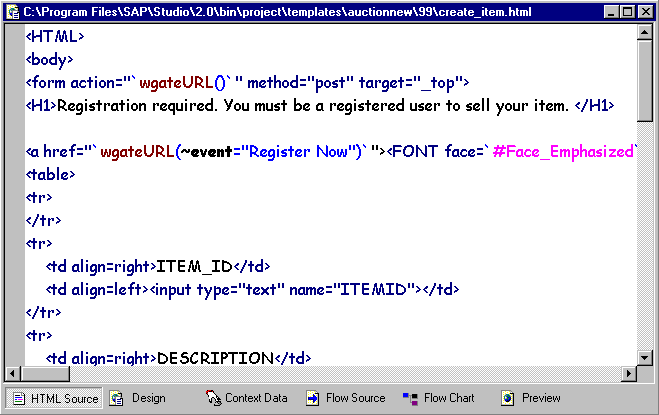
The HTMLBusiness editor supports entry of several standard HTML elements. You can:
Procedure
Inserting Standard HTML Tags as you Type
If you enter
< to open a standard HTML tag, the HTML Business editor recognizes this and automatically displays a list of valid tags in a scrollable pop-up window at the cursor position.As you type, the HTMLBusiness editor finds and highlights the nearest alphabetical match in the list of valid tags. You can select the highlighted tag or any other tag in the list.
If you select a tag from the list of valid tags, the HTMLBusiness editor inserts it at the cursor position.
When you enter the closing angle bracket for the tag, the HTMLBusiness editor inserts the closing tag automatically.

Suppose you intend to use the
As soon as you enter
< to open the tag, the HTML Business editor displays a list of valid tags. To insert the body tag, double-click on it and you see <body .When you enter the closing angle bracket, the HTMLBusiness editor automatically inserts the closing tag
</body> .If the HTMLBusiness editor finds no more matches as you type, the window closes automatically.
To close the pop-up window at any time, click elsewhere on the screen.
Inserting Standard HTML Tag Attributes as you Type
If you enter a valid standard HTML tag followed by a blank and this tag has attributes, the HTMLBusiness editor recognizes this and automatically displays a list of valid tag attributes in a scrollable pop-up window at the cursor position.
As you type, the HTMLBusiness editor finds and highlights the nearest alphabetical match in the list of valid tag attributes. You can select the highlighted tag attribute or any other tag attribute in the list.
If you select a tag attribute from the list of valid tag attributes, the HTMLBusiness editor inserts it at the cursor position.
When you type the closing angle bracket, the HTMLBusiness editor inserts the closing tag automatically.
Suppose you intend to use the tag
As soon as you enter a blank after
<select , the HTML Business editor displays a list of possible attributes. To insert the attribute, double-click on it and you see <select name=""When you enter the closing angle bracket, the HTMLBusiness editor automatically inserts the closing tag
</select> .If the HTMLBusiness editor finds no match as you type, the window closes automatically.
To close the pop-up window at any time, click elsewhere on the screen.
Inserting Standard HTML Formatting Tags
To insert standard HTML formatting tags as you type:
The following table lists the text formatting tags you can insert with the HTML Tags function:
Format |
HTML Business Editor Action |
Bold |
Inserts the tag <b></b> or encloses selected text. |
Italic |
Inserts the tag <i></i> or encloses selected text. |
Paragraph |
Inserts the tag <p> or encloses selected text. |
Break |
Inserts the tag <b> or encloses selected text. |
Font dialog |
Opens the HTML Tag Editor, where you can define values for the font, color and size. When you confirm with OK, converts your selections to HTML and either inserts them at the cursor position or encloses the selected text. Example of inserted HTML: <font face="Arial" color="Green" size="3"></font> |
Header 1 |
Inserts the tag <h1></h1> or encloses selected text. |
Header 2 |
Inserts the tag <h2></h2> or encloses selected text. |
Header 3 |
Inserts the tag <h3></h3> or encloses selected text. |
Header 4 |
Inserts the tag <h4></h4> or encloses selected text. |
Header 5 |
Inserts the tag <h5></h5> or encloses selected text. |
Header 6 |
Inserts the tag <h6></h6> or encloses selected text. |