
 Sales Pricing Process (PS)
Purpose
A sales project is usually a one-off service, carried out for a specific customer. The unique nature of such projects means that you will often not have recourse to standard prices when you are calculating the sales price. The price calculation in such cases is then based on the plan data from the project.
You can run sales pricing in the following ways:
If you create a project due to a customer inquiry, and you wish to calculate the sales price, call up sales pricing using the menu path. The system determines the sales price based on either the planned costs (totals records) or data from Easy Cost Planning.
If you carry out sales pricing for a project you created without a customer inquiry, call up sales pricing in the Project Builder. In this case the system determines the sales price based on the data from Easy Cost Planning only.
For more information, see
 Sales Pricing in the Project Builder.
In this process you can:
- Determine the sales price for a customer project on the basis of the plan data in the project, with the help of the pricing function in SD
You can create any number of sales price calculations and save them in documents, without creating a quotation.
For more information, see
Sales Pricing Options.
- Update the determined sales prices to projects as planned revenues, by means of a billing plan

This is a change from earlier releases (up to and including Release 4.5B), where the values from the SD document assigned to the document and the billing plan were added together.
As of Release 4.6A, the system records only the values from the billing plan, if there is one.
For more information, read
Recording Planned Revenues.
- Create a detailed quotation for a project assigned customer inquiry based on project planning in Sales and Distribution (SD).
For more information, see
Creating Quotations for Customer Projects.
If you wish to carry out sales pricing for a project assigned customer inquiry, see the section on integration. If you wish to carry out sales pricing without a customer inquiry, using the Project Builder, then the section on integration is irrelevant.
Integration
If you wish to carry out sales pricing for a project with a customer inquiry, then you are also currently using Sales and Distribution (SD).
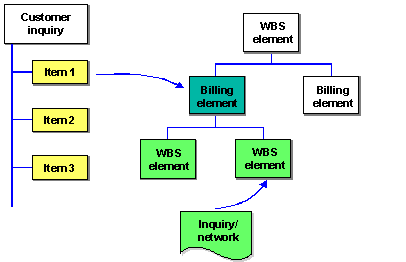
To link the sales order in SD with the Project System, assign one or more sales order items to a WBS element (billing element or account assignment element). The inquiry item then supplies the SD data needed by the sales pricing.
If you assign an account assignment element to an inquiry item, the system determines the relevant billing element in the project. The billing element, along with the WBS elements subordinate to it (which are not billing elements), activities, and orders, makes up the billing structure.
Regardless of whether you assign the inquiry item to a billing element or account assignment element, the system considers the whole billing structure when carrying out sales pricing.
Prerequisites
Maintain the prerequisites listed here for the sales pricing you wish to carry out for the project assigned to a customer inquiry.
For information about the prerequisites for sales pricing in the Project Builder, see
Sales Pricing in the Project Builder.
Settings in Project System (PS):
You defined a Dynamic Item Processor profile.
- In the plan profile, you stipulate whether the system updates the planned revenues from the sales document item to the corresponding billing element.
If you have not assigned a billing element to the sales document item, the system records the planned revenue in the superior billing element in the hierarchy.
For revenues from SD documents to be assigned to a project, choose an account assignment category that allows assignment to a project.
- If you want to maintain conditions for quotation creation, the manually maintained conditions are assigned to the sales document type.
Settings in Sales and Distribution (SD)
There is an inquiry assigned to the project - that is, an inquiry item exists which is assigned to a billing element.
To do this, define the WBS element to be account assigned to the sales document item on the Account Assignment tab page.
The system uses the inquiry item to determine the SD data for the sales pricing.
dynamic item processor (DIP) profile has been entered in the inquiry.
To do this, define a Dynamic Item Processor profile (DIP profile) in the tab strip Sales B for the sales document item.
- In the sales document item, define a material that permits account assignment to a project.
For more information, see Customizing for the Project System under Revenues and Earnings ®
Integration with SD Documents ®
Assign Sales Orders to Project Account.
Other Prerequisites:
You have planned costs by cost element in the project.
If you want the system to display the planned costs (totals records) differentiated by material, set the Origin of Material indicator on the Costing 1 tab strip when you create the material.
If you want to display the material quantity, set the With Quantity Structure indicator on the Costing 1 tab strip when you create the material.
Process Flow
To carry out a detailed sales pricing on the basis of the plan data in the project, access the sales pricing and enter a project definition, WBS element, and inquiry/inquiry item as your selection criteria.
For more information, see
Selection Criteria.
You can create a new sales pricing or edit an existing one.
When you opt to create a new sales pricing, the system works as follows:
- Starting with the costs planned by cost element, the system determines the sales price basis items using the DIP processor profile (see Prerequisites above). These items of the sales price basis are identified as dynamic items.
- The system sorts the various dynamic items per the SD document items and uses
SD price determination to calculate the sales price.
To this end, it uses the document category (from the DIP profile) to determine the pricing procedure. Further data required for the price determination, such as the ordering party, is defined in the inquiry.
- There are two views you can use for processing:
Sales price basis, which displays the internal view of the calculation.
Sales price view, which displays the customer view of the calculation.
You can edit the pricing data in both views and can change views at any time.
You then do one of the following:
- You save the document for further processing later.
- You copy the sales price as planned revenue to the billing plan for the WBS element.
The sales price is entered in the billing plan as the target value. You can distribute the target value manually to various dates.
If the sales price is changed later, the system does not automatically copy the change to the billing plan.
Result
If you have adopted the sales price as the target value in the billing plan, the system uses the billing plan to record the sales price as planned revenue in the project.
If you have saved a sales price as a document, you can use it to create a quotation in SD.