Entering content frameWorking with Package Lists Locate the document in its SAP Library structure

Use

You can use package lists to group together packages according to their relevance for translation. Package lists are valid across all target languages in the system.

You can use package lists to assign the same selection of packages to multiple target languages quickly and efficiently.

You can display the statistics according to a specific package list, and you can also use package lists to create an object list for an evaluation.

The graphic below displays the package list interface and the functions included in it:
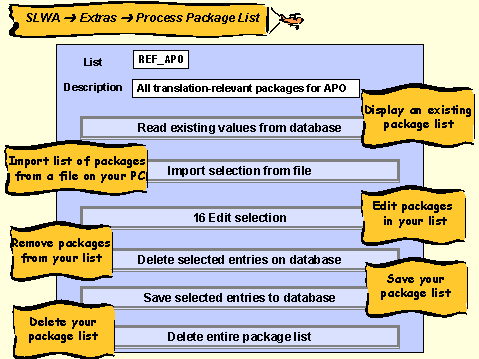
This graphic is explained in the accompanying text

This section describes how you can perform the following activities:

Prerequisites

To create and edit a package list, your translator profile must contain authorization A7 (Package list administration) with value 1.

To call up the statistics for a package list your translator profile must contain authorization TS (Statistics) with value 1 or higher.

Creating a Package List

  1. Call up transaction SLWA.
  1. Choose Extras ® Process Package List.

The dialog box Package Lists appears.

  1. Enter a name for your package list in the field List (Maximum: 15 characters) and a description in the field Description.
  1. You now have several options for selecting the packages for your package list:

You can use this option to upload packages contained in a file on your PC. Select the directory and file name from the dialog box that appears and choose Transfer. The number of packages you have uploaded is displayed on the Edit selection pushbutton.

You can use this option to select packages in the same way as you select them when you use the Filter function. For more information, see Filtering Packages.

  1. Once you have selected the packages for your package list, choose Save selected entries to database.

Adding Packages to an Existing Package List

  1. Call up transaction SLWA.
  1. Choose Extras ® Process Package List.

The dialog box Package Lists appears.

  1. Enter the name of your package list in the field List.
  2. Choose Read existing values from database.
  3. The system displays the number of packages in the package list, beside Edit selection

  4. Choose Edit selection.
  1. Choose Table display (icon This graphic is explained in the accompanying text).
  2. From this list, select the packages that you want to add to the group.
  3. Choose Save.
  4. Choose Save.
  5. Choose Save selected entries to database.

Removing Packages from an Existing Package List

  1. Call up transaction SLWA.
  1. Choose Extras ® Process Package List.

The dialog box Package Lists appears.

  1. Enter the name of your package list in the field List.
  2. Choose Read existing values from database.

The system displays the number of packages in the package list, beside Edit selection

  1. Choose Edit selection.
  1. Choose Table display of selection (icon This graphic is explained in the accompanying text).
  2. Choose Deselect all, and then select those packages that you want to remove from the group.
  3. Choose Save.
  4. Choose Save.
  5. Choose Delete selected entries on database.

Deleting an Entire Package List

  1. Call up transaction SLWA.
  1. Choose Extras ® Process Package List.

The dialog box Package Lists appears.

  1. Enter the name of your package list in the field List.
  1. Choose Delete entire package list.

Using a Package List to Assign Packages to Translators

  1. Call up transaction SLWA.
  1. Enter the target language you require under the Target language tab title.
  1. Choose the Packages tab title.
  1. Under Selection Basis, choose the Filter pushbutton.

The dialog box Filter for Package Selection Basis appears.

  1. Under Optional criteria choose F4 on the Delivery field.

The dialog box Package Selection appears and lists the options you can use to filter the packages available in this system.

  1. Double-click 006 Package List.
  1. Enter the name of your package list in the field Parameters that appears. You can choose F4 on this field to help you.
  1. Now choose Or relationship.

The system displays number of packages contained in this package list in the Current selection field at the top of this dialog box.

  1. Save your selection by choosing the icon This graphic is explained in the accompanying text.

You now return to the Packages screen. The number of packages you selected now appears in the box under Selection Basis.

  1. If you want to assign all these packages, choose the Select All icon under Selection.

If you want to further restrict the scope of your selection, you have the following options:

  1. You can now see the number of packages that you have selected in the field under Selection. To assign these packages to a translator, choose Assign.

A dialog box appears containing a list of all the translators defined for the target language you have selected.

  1. To assign the packages that you have selected to a translator in this list, double-click the translator's user name.

Displaying the Statistics for a Package List

  1. Call up transaction SLLS.
  2. Choose Complex Statistics.
  3. Under Select packages, choose Selection of Packages.
  4. The Package Selection screen appears.

  5. Under Selection Basis, choose Package list.
  6. A dialog box appears and lists all the package lists available in the system.

  7. To select the package list for which you wish to display the statistics, double-click its name in this list.

The number of packages contained in this package list now appears in the box under Selection Basis.

  1. If you want to display the statistics for all these packages, choose the Select All icon under Selection.

If you want to further restrict the scope of your selection, you have the following options:

  1. You can now see the number of packages that you have selected in the field under Selection. Choose Save.
  2. You now return to the Complex Statistics screen. To display the statistics for this package list, choose Display.
Leaving content frame