

 SAP@Web Studio Toolbars
The SAP@Web Studio user interface provides the following toolbars:
You can display or hide these toolbars in any combination below the menu bar and above the main work area. Some depend on the development activity.
Standard Toolbar

This toolbar contains standard
file management functions such as Open File, Save, Print, Cut, Copy, Paste, Delete, Find, Undo and Redo.Build Toolbar
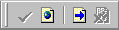
This toolbar contains functions for
checking HTMLBusiness and JavaScript syntax, viewing HTML templates in a Web browser, creating flow files and deleting flow files.The buttons in the build toolbar are listed in the following table:
Button |
Function |
Description |
|
Check Syntax |
Checks the syntax of HTMLBusiness code in HTML templates and JavaScript code in JavaScript files. |
|
Display HTML Template in Web Browser |
Displays an HTML template as it will appear in your Web browser. |
|
Add Flow File |
Adds a flow file to an HTML template. |
|
Delete Flow File |
Deletes a flow file from an HTML template. |
Publish Toolbar

This toolbar contains functions for
publishing and testing ITS files. There is also a dropdown list box for specifying the currently active ITS site.The elements in the publish toolbar are listed in the following table:
Button/Element |
Function |
Description |
|
List box for selecting and displaying the active ITS site. |
Displays the currently active ITS site. |
|
Publish Files |
Publishes selected ITS files to a specified ITS site. |
|
Build Service |
Publishes all the files that make up the currently active service to the currently active ITS site in a single operation. |
|
Start Service |
Publishes all the files that make up the currently active service to the currently active ITS site in a single operation and starts the service at the same time. |
Repository Toolbar

This toolbar contains functions for
source-controlling files in the R/3 Repository. These functions include Connect to R/3, Disconnect from R/3, Add File(s) to Source Code Control, Check in File(s), Check out File(s), Refresh Source Code Control View.Design Toolbar

This toolbar contains functions for designing HTML templates in the HTMLBusiness editor‘s Design view. The table below lists the functions in the order they appear in the toolbar and provides a brief description of each.
Function |
Description |
Show Borders |
Highlights borders of template elements. |
Absolute Positioning |
Allows you to move elements to any absolute position. |
Lock |
Locks unlocked elements in their current position or unlocks locked elements from their current position. |
Absolute Mode |
Not currently available. |
Snap to grid |
Restricts movement of elements to grid. |
Bring to front |
If one or more elements overlay each other, brings selected element to the front of the display. |
Send to back |
If one or more elements overlay each other, sends selected element to the back of the display. |
Select Parent Element |
Allows you to select the controlling element in a set of elements. This eases navigation among nested container controls. |
Table Toolbar

This toolbar contains functions for processing tables – Insert New Table, Insert New Row, Insert New Column, Delete Cells, Merge Adjacent Cells and Split Cells.
HTML Toolbar

This toolbar contains text formatting functions for the HTMLBusiness editor’s Design view.





