

 Interpret Text Attribute as File Name/URL and Display Contents
Use
Files or Web resources can be monitored with various monitoring functions of the monitoring architecture. When doing so the name of the monitored file, for example, can be output as a text attribute (as in the case of
Monitoring of Log Files). To quickly display the contents of a file of this type or of a URL from the Alert Monitor, there are two analysis methods that display the contents of the file or the URL in a separate window.Prerequisites
The text attribute must have content that fulfills one of the following prerequisites:
 CCMS agent.
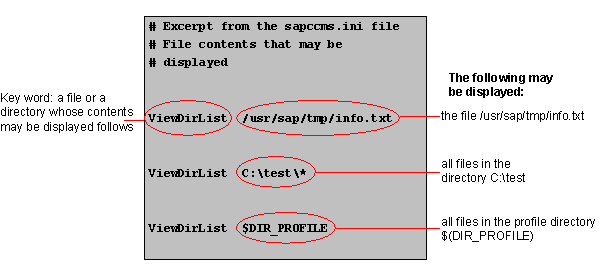
For security reasons, the CCMS agent only transfers files for which you have previously assigned a display authorization. To do this, enter the files whose display is to be allowed into the
agent configuration file SAPCCMSR.INI, after the key word ViewDirList. You can use the wild card character (*).

For the
working directory of the CCMS agents and the working directory of the operating system collector SAPOSCOL, you do not need to assign read authorization in the SAPCCMSR.INI file. The files in these directories can always be displayed.
You must restart the CCMS agent to allow the changes to the SAPCCMSR.INI file to become effective (see
Installation of the CCMS-Agents).
Example
Procedure
Assign the appropriate analysis method to the desired text attribute. To do this, follow the procedure below:
 ) pushbutton, and choose the Analysis tab page. In the Method Assignment group box, choose Method Name.
) pushbutton. In the Method Assignment group box, choose Method Name.
) pushbutton, and choose the Analysis tab page. In the Method Assignment group box, choose Method Name.
) pushbutton. In the Method Assignment group box, choose Method Name.
Result
If the text attribute can be interpreted as a file name or a URL, you can now display the contents of the file or the URL by choosing the attribute by double clicking it.
See also:
Assigning Methods to MTE Classes