

 Conditions
Definition
Condition
A condition is a contractually agreed element of a financial transaction or financial instrument. It describes the structure of the transaction in terms of the period and amount (interest, repayment, and so on).
Condition type
You define conditions using condition types. You assign flow types to condition types in Customizing by choosing Define Condition Types. These flow types display changes to the payment flows and are part of the cash flow. You assign the flow categories and calculation categories which are predefined in the system to the flow types you define in Customizing. The flow category controls how the flow is processed in accounting, while the calculation category controls how the cash flow is processed.

SAP delivers flow types for the common business transactions. You can use these flow types without making changes to them.
Examples of condition types are interest, and final repayment.
Condition group
A group of condition types.
Each product type requires only a selection of condition types. You create various condition groups and assign different condition types to them in Customizing for Loans by choosing Define Condition Groups. You then assign these condition groups to the individual product types by choosing Define Product Types.
Use
Conditions include all the data that is relevant for generating condition-based flows in the cash flow. The different entries for the individual condition types determine exactly how the flows are calculated.
Conditions in the loans area are usually "individual" conditions. This means that a condition cannot exist independently of a transaction. You can define conditions in advance using
new business tables. This function allows you to predefine conditions for different periods (variants) centrally before you create the individual contracts. The values can then be copied to a contract offer or contract.You enter the conditions for loans given and loans taken with the other contract data as part of transaction management.
You can make changes to the conditions until the loan is disbursed. Once the loan has been disbursed, you require special authorization to change the conditions. You can still change condition details that do not affect the financial structure of the loan, such as payer/payee data and posting data in the condition items and application data, contract data and notice data in the condition header without special authorization.
Initially, you can fix the conditions for a limited period (fixed period). When this period has elapsed, the existing conditions are no longer effective and the loan has to be rolled over. In other words, you need to define new conditions for the contract.
Rollover
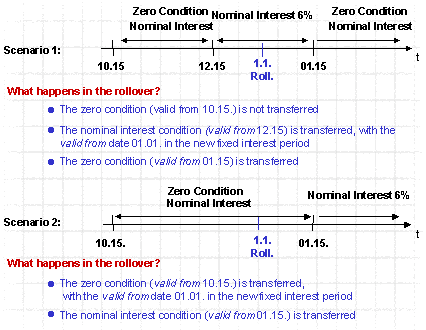
All the regular conditions rolled over.
One-time conditions are only transferred if the Eff. from date falls within the new fixed period.
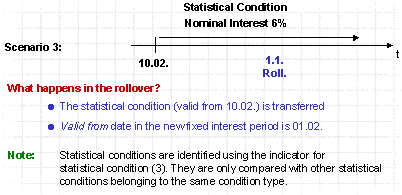
Example: Rollover of zero conditions and statistical conditions
The following rules apply:
The Eff. from date assigned to statistical conditions is the "rollover date + 1 day".
Graphics: Rollover scenarios
See also:
RolloverStructure
When you create or change a loan, choose the Conditions tab.
General data
The upper part of the master data screen tells you which loan the conditions are for. It displays the following data:
Tab pages
The condition header contains the basic condition data, such as the capital amount, the disbursement rate and the method for calculating the discount. In the Term/Fixed period section you specify the current fixed period. In the Interest calculation section, you can enter details for the effective interest method, for example.
The information you can enter on this tab includes data about contract creation, the special interest indicator for calculating interest on arrears, a comparative effective interest rate and details for the internal effective interest rate.
Here you can enter information about the progress of an offer, such as how long the conditions of the offer apply and the date an offer was accepted.
On this tab you enter the date on which the borrower cancels a loan as well as the earliest date at which the lender can cancel the loan unilaterally.
This data applies for all the condition items.
In some cases, you can use the field selection function in Customizing for loans to define whether entries can be made in a particular field (Company Code-Dependent Settings for Product Type).
Condition items
You can choose from several condition types for each product type according to the settings you make in Customizing.
A condition item comprises the various details (dates and amounts) for the respective condition type. For the condition type "nominal interest", for example, these details would include the Eff. from date, Calculation date, Due date, Percentage rate, and so on.
You can set most of the entry fields for each condition type as optional entry, required entry or display fields using the field selection function in Customizing by choosing Define Condition Types.
You define default values for the fields in Customizing by choosing Company Code-Dependent Settings for Product Type. These values also apply for hidden fields.

You should display (rather than hide) the fields with default values.
Condition Detail Screen
You can branch to the detail screens for conditions by double-clicking on a condition item or by selecting a condition item and choosing Details for item. The details in the Condition Details screen show you exactly how the conditions are structured. The screen contains additional fields to those on the Conditions screen, depending on your field selection controls for the condition.
Besides general details for the loan, such as the company code, product type or loan number, there is a Condition form field. The three values for this field affect how the flows are generated for the condition item in the cash flow:
When you enter a zero condition, you can end the effectiveness of a condition item at any date. To do this, enter a new condition item of the same condition type, enter the required Effective from date and select it as a zero condition. This allows you to represent suspended repayments in the system. To reactivate calculations for this condition type, you enter a subsequent condition item.
Condition items with values which should remain unchanged for the financial mathematics calculations are "fixed" for alternative calculations such as the calculation of the nominal interest rate on the basis of a specified effective interest rate.
This type of condition item is ignored. In other words, no flow records are generated in the cash flow. Statistical conditions are usually used as an aid for the condition overview. They allow you to display rollover payments or charges that are not effective for the contract.
The Date preview button enables you to display a list of dates for the flows of the relevant condition type. The list includes the due date, the payment date, the calculation period and the resulting number of days (interest days), as well as the interest calculation method.
The Condition Details screen contains three tabs:
Here you can enter details relating to the amount(s) for a condition type. For the Nominal interest condition type, these are more detailed entries for the interest calculation. You also see the Interest reference field here when you enter a variable interest rate. You can enter a fixed amount as the calculation basis for interest. This amount applies to the calculation of interest for the whole of the fixed period. This function is also available for repayments and amounts equivalent to interest (charges etc.). Using F4 help, the interest calculation capital (remaining debt) and the Interest calculation capital (remaining debt) + Disbursement Obligation are available for you to select as the variable calculation bases for interest in the field Reference.
On this tab, for example, you specify the calendar to be used if you shift the due date to a working day (such as the SAP standard factory calendar).
The Calculation date is the last day of the current interest period. The Due date is the day the interest payment is due. This area also contains fields for determining the calculation date and due date of the condition item more precisely. You can, for example, define the calendar rule according to which a due date is postponed if it does not fall on a working day and the method according to which the next calculation date and/or due date is calculated.
You can set up defaults for these fields for each condition group and condition type in Customizing for Loans by choosing Define Condition Groups.
If alternative bank details for the main borrower are to be used for a condition item, you make the relevant entry in the Part.bank type field.
If a condition item is to be paid by an alternative payer, enter the other business partner assigned to the contract (for example, other loan partner with customer account), the related bank details (partner bank type) and a payment method. You can also enter alternative payees, for example, for an agent’s commission.
Save the contract. A dialog box appears prompting you to check your entries. Here you decide whether the bank details defined in the Partner overview or the alternative bank details in the Condition should to be used for paying the condition.
You use the Posting control field to determine whether the planned records generated by entering the conditions are to be created manually or automatically.
If you defined several dunning areas per company code when setting up the dunning program in Financial Accounting, you can use the Dunning area field to determine the area to which the related FI document should be sent. Any dunning letters will then be created for the specified dunning area.
The entry fields in the detail screen differ according to the condition type.
For more information on entering conditions see: