

 Creating Language Resources With the Resource Wizard
Use
You use this procedure to create
language resources with the resource wizard.
If you are developing screen-dependent applications based on Web Transactions, it is best to create language resources with the resource wizard, but you can also
If you are developing screen-independent applications based on ITS Flow Logic, you must
create language resources manually.Prerequisites
There must be a user in the R/3 System which your service is using.
You must first create a
service file and at least one HTML template.Procedure
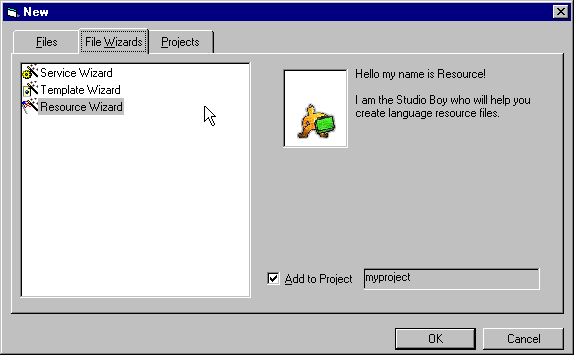
To create a language resource file using the resource wizard:
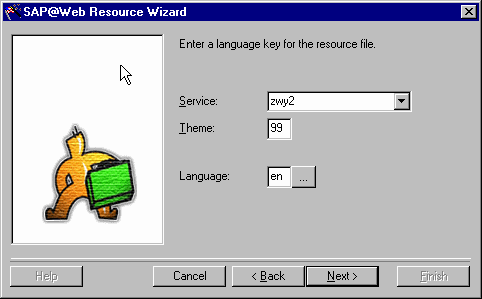
If you define service-specific logon information, remember that the language key must be:
You get a dialog window that lists all the language resource files that exist for this service.
Result
The SAP@Web Studio creates an empty language resource file called
<service>_<language>.htrc and displays it in the Workspace – Project View under the current service and theme (if applicable).