Entering content frameFunction documentation Liquidity Analyses Locate the document in its SAP Library structure

Use

The aim of Cash management is to provide you with an overview of the liquidity status of your company. The system offers you two evaluation reports, with which you can edit various views:

The cash position and liquidity forcast amount to the total liquidity of the company.

Integration

The following diagram illustrates the liquidity analyses within the SAP system:
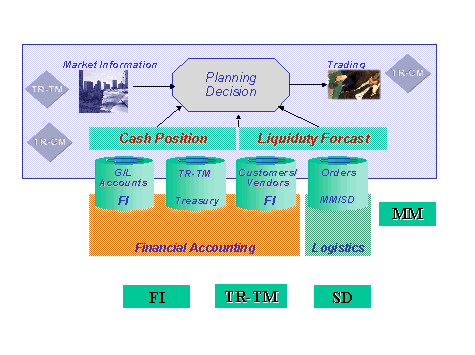
This graphic is explained in the accompanying text

Prerequisites

On this subject, read the units:

Scope of functions

In the following table you will find a summary of the most important differences and common features between the cash position and the liquidity forcast:

Cash position

Liquidity forcast

Short-term cash managemenet and forcast

Mid/long term cash management and forcast

Shows the development of bank accounts andbank clearing accounts (solvent G/L accounts)

Shows the development of subledger accounts (Customers and vendors)

Examples for assigned planning levels/data sources:

  • manual individual postings (payment advices)
  • Bank postings
  • Bank clearing postings
  • All treasury transactions, such as (money market transactions and forex transactions), if bank details are maintained.

Examples for assigned planning levels/data sources:

  • manual memo records (planned records)
  • Invoices
  • Orders
  • Purchase orders
  • All treasury transactions (if cash management groups are maintained for the business partner)

Typical time horizon: 0-5 days

Typical time horizon: 1-24 weeks

Just like the cash position, the liquiduty forcast display is as detailed as you wish.

You determine the structure of the display for both views with the grouping. Through the grouping term, certain levels and planning groups are grouped together.

The Cash position and liquidity forcast include amounts in the house currency as well as in the foreign currency.

As an additional function, you can also get an insight into the vendor and customer analyses. Select Environment ® MM Information System or SD Information System. Then purchase orders from materials management (MM) and orders from Sales (SD) are included.

Activities

  1. Select Information System ® Reports on Cash Management ® Liquidity Analyses ®
    Cash position or liquidity forcast.
  2. The <Cash management: Initial Access> screen appears. This is the same for the cash position and the liquidity forcast.
  3. Using the This graphic is explained in the accompanying text button, you can display additional selection criteria (after entering the grouping and currency) and using the This graphic is explained in the accompanying text button, you can compress the selection. The screen structure changes accordingly.
  4. Enter one or more company codes and the business area if necessary.
  5. In the area Further selections, you can decide which evaluation you want. Select the cash position or liquidity forcast or a complete view (by flagging both fields).
  6. Enter a grouping term by which the accounts or planning groups should be grouped together. The grouping determines which levels and accounts are selected. With the grouping, you can also determinenhow the data is to be summarized on the first screen.

CautionYou create the groupings in the Cash management Customizing area (Please read the units Define Grouping and Maintain Structure in the implementation guide.)

  1. The Display as of field shows the start date of the cash position or the liquidity forcast. The current date is automatically proposed by the system.
  2. In the Planned Currency field, you can enter the currency if you want to select according to a certain or several currencies. You could for example only display the transactions in USD. If nothing is entered, all available currencies are displayed.
  3. In the Display in field, specify the currency in which the liquidity analyses should be displayed.
  4. Exchange rate FC/HC
    The foreign currency is converted into the display currency with the exchange rate defined here. If you enter an exchange rate, the value is automatically taken from the currency table.
  5. Exchange rate HC/FC:
    If a foreign currecny is to be converted into another foreign currency, this takes place via the display currency. Therefore you need to specify the corresponding ratio here. The ratio is also referred to if the display currency amounts are to be displayed in foreign currency.
  1. In the Steps area, define the time interval (1-99) for the output in days (D), weeks (W), or months (M). Alternatively you can set variable time intervals and receive the display in daily, weekly and monthly time intervals.
  1. In the Display type area, you can select the type of number format: the system displays the accumulated values or the inflows and outflows (Delta display). In the Delta display, you can also specify the start and end balance.
  2. The amounts can be displayed under the respective value date ot planning dates ot alternatively be distributed as a percentage over several days. You also need to select the instruction Distribute amounts. The percentage distribution takes place according to a key that was defined as part of the system setting. It controls to what percentage an amount planned to a certain time should be entered in the liquidity forcast and therefore the amount can be distributed over various days.

  3. You can determine the display of predecimal and decimal places in Output control - Scaling Factor.

Example

With scaling factor 3,0, number 10.355075 is displayed as 10,and with scaling factor 0,2, the number 10.355,75 is displayed as 10,355.75.

  1. If you select the indicator "Display Saturday/Sunday", the amounts planned to a Saturday or Sunday are documented separately. Otherwise these amounts are accumulated to the following Monday and displayed under this date.
  1. Select Program ® Execute.
  2. You will see analysed records in the summarized display.
  1. After the initial access, a basic screen appears which is determined through the grouping and the summarization terms in Customizing. From here you can go into the levels and then from there into the related accounts or planning groups or the opposite, from the accounts into the related levels. .

NoteYou can find further information in the units
Cash position and
Liquidity forcast.


Leaving content frame