

 Installing the SAP ODA Connector
Procedure
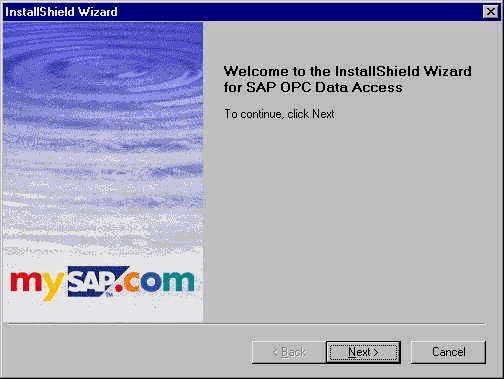
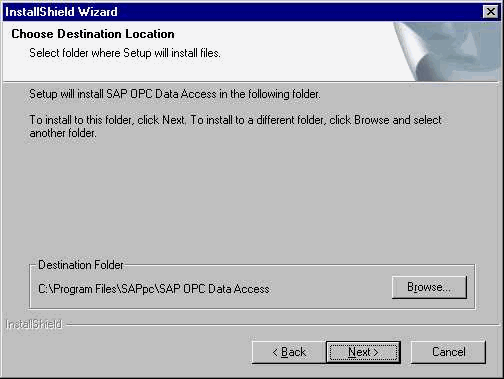
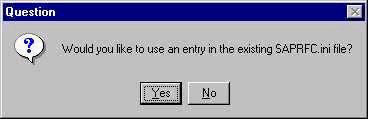
To use an existing entry, choose Yes.
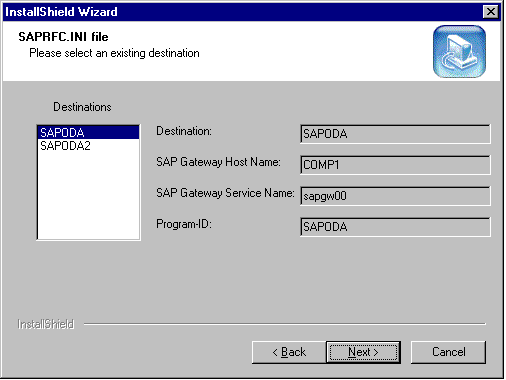
The dialog box with existing entries in the SAPRFC.INI file appears.
Select a destination in the dialog box and choose Next.
To create a new entry, choose No in the Choose Destination Location dialog box.
Enter the following parameters:
|
Destination |
Any name for the configuration you are about to create |
|
Configuration Parameters |
|
|
SAP Gateway Host Name |
Host name or IP address of the SAP gateway |
|
SAP Gateway Service Name |
Program name of the SAP gateway |
|
Program ID |
Any program ID under which the SAP ODA is registered at the SAP gateway.
The program ID must be entered in the RFC destination for SAP ODA that you have defined in Customizing for the SAP R/3 System under Process Management ® SAP ODA ® Define RFC Destination for SAP ODA. |
Choose Next.
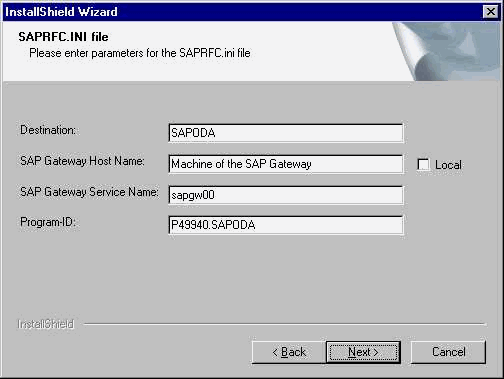
Enter the required parameters in the dialog box. Proceed as described in Creating a new entry in the SAPRFC.INI file to do so.
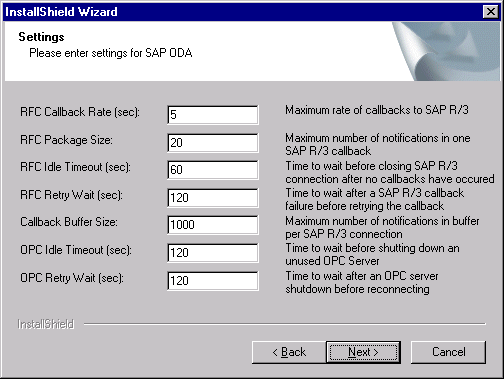
You can make the following settings:
Choose Finish.
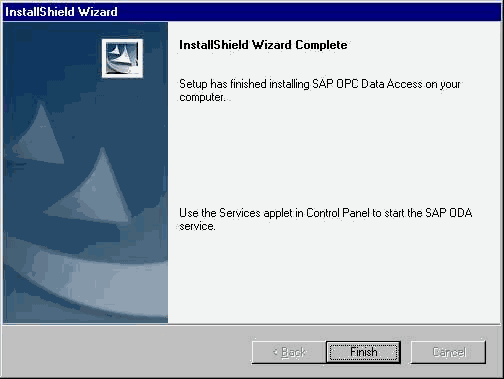
If all your settings are correct, the SAPRFC.INI file is installed on your PC along with the parameters you have specified.

In the Windows system, SAP ODA is registered as a service that is automatically started when you boot your computer.
If the system is unable to start the service, check the Event Viewer Log for information about the error.