

 Filling the Dangerous Goods Master
Use
The system can only fill tables with data records for which logical keys can be formed uniquely from the material and the dangerous goods regulation. The following links can be made:
You can make assignments in the Product Safety component according to the following patterns:
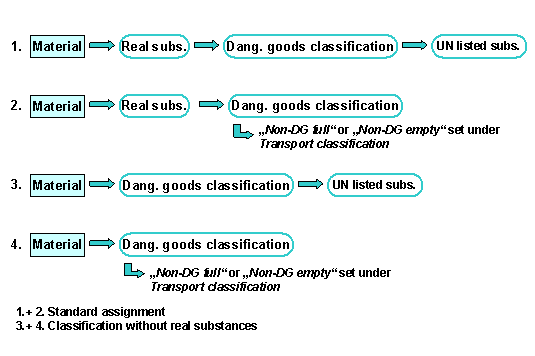

For example, if the dangerous goods are to be transported at a higher temperature, assign the dangerous goods classification directly to the material or materials:
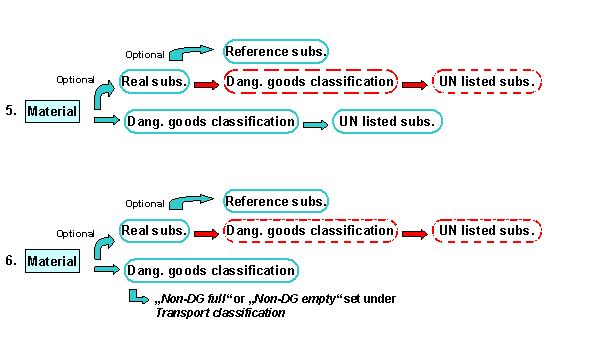
You should use just one of the methods specified. The red dashed lines indicate that these assignments play no role in filling the dangerous goods master records.
Notes on figures 5. and 6: Specifications such as real substance, real substance group, listed substance, or listed substance group can be specified as reference specifications.
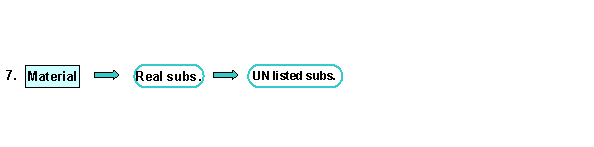
You should only make the following assignment in exceptional cases as no dangerous goods classification is taken into account:
Prerequisites
See Prerequisites in
Filling.Procedure
A screen for selecting data appears.
You can also simulate filling by choosing either of the above paths and then ® Simulate instead.
Contains the key for specifications of specification type DG_CL_SUB (dangerous goods classification). The system determines both directly assigned materials and materials that are assigned to real substances that reference a dangerous goods classification.
The system determines the assigned materials if a dangerous goods classification or a UN listed substance was assigned to the real substance as a reference, or a UN listed substance was assigned directly.
The system checks whether a dangerous goods classification was assigned to the material directly or using an assignment to a real substance.
The system selects specifications valid for the selection date.
The system selects phrases (from the active phrase library) for the phrase group specified.
 .
.A system message to inform you if filling has been performed successfully is displayed.
Phrases are generated automatically in the background during filling. This process is only executed if you have not yet created the phrases in the dangerous goods master or if you have changed existing phrases.
If filling has been successful, you can display the import log.
You can use the Evaluate change pointers indicator to tell the system to take into account during filling only those data records that were created or changed.
Displaying the Log
The Evaluate Application Log screen appears.
The system displays the log.
You have the option of choosing which messages you want to see in the import log for filling. This means you can reduce the scope of extensive logs. Make the required settings in Customizing for Dangerous Goods Management in the IMG activity Hide Messages in Import Logs.
Deleting the Log
.Result
The data in the specification database is copied to the dangerous goods master in the current system and client. You can subsequently edit data in the dangerous goods master if you have set up the corresponding authorization profile.