

 Executing the Report Portfolio using the Hierarchy Graphic
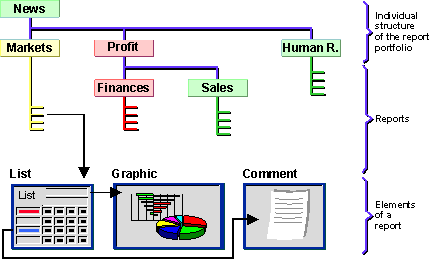
In the figure above you can see an example of a user group, which is represented in hierarchy graphic form. The hierarchy contains the names of report classes in the relevant user group. The report classes contain the reports assigned to them. Examples of report classes are: Profit, Finances, News. The report classes contain their assigned reports and elements such as lists of graphics. Default colors are assigned to the reports and report classes.
A report can contain one or more so-called exceptions. An exception is a condition that determines whether a object is striking, meaning whether unexpectedly high or low values appear with respect to a key figure. If one or more exceptions are determined by the system, a report or report class can automatically be colored red or green accordingly. In this example, the report class Market appears in the default color yellow. For more information see
Exception Reporting in the Report Portfolio.In order to display a report in your report portfolio proceed as follows:
The hierarchy graphic of the report class in your user group is displayed.

Note that when you choose the function Report portfolio, the graphic is usually displayed immediately. You will only be asked to enter your user group if this has not been set.
The system displays an overview of all the reports assigned to that class in the form of a graphic.
It is possible that a dialog window will appear before you see the first report list. You can transfer the suggested values for the variables or enter your own values in this dialog window. These are normally variables for characteristic values (for example, fiscal year 1996), which determine the dimensions of the report. Text variables can also be offered. You can enter a text here which is displayed in the report list. Furthermore, there are variables for hierarchies, hierarchy nodes and formulas.
If exceptions are defined for the report, it is possible that the key Variable (Exception) is offered in the dialog window. Via this function the combination of characteristic values in the entry fields, which is responsible for the coloring of the hierarchy graphic, is presented to you.