

 Maintaining a Data Entry Layout (EC-EIS)
When maintaining transaction data with a layout you can maintain actual data for a selection of key figures and characteristic values on one screen. You must first have created a data entry layout in Customizing. With the layout you define the specific screen structure for data entry. A layout is similar to a form in drilldown reporting and can be used as many times as you like for entering data. You can find a detailed description of the creation of a layout in Customizing.
Structure of a layout
All layouts are based on the following structure:
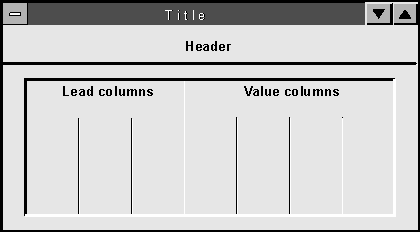
The fixed characteristics, Plan/Actual indicator, Version, Fiscal year and Period have to be specified in the data entry layout. You can set these either in the header (meaning in the general selections), in the lead column, or in the columns.
Definition of the header
Several characteristics make up the header of a layout. You can choose these from the general selections using Edit
® Gen. data selection ® Display/change. You can specify characteristic values, define an interval or create variables for the characteristic values. 
With compound characteristics, the superior characteristic must be defined either in the general selections or in a lead column. If you define the superior characteristic in the header you must select a single value. If you want to enter data for several characteristic values you should define the characteristic in a lead column (see Definition of a Lead Column below). For more information about compound characteristics, see
Using Edit
® Gen. Dat.selections ® Header layout you can change the sort order of the characteristics that you chose for the header and, if necessary, hide characteristics. A maximum of nine characteristics can be shown in the header. If you select more than nine you must hide the others.Definition of a lead column
The lead column defines the contents of the rows. You have two options for defining a lead column:
If a compound characteristic is to appear in a lead column with text, the superior characteristic must be limited to one value in the general selections.
Definition of a column
If you have created the lead column as a single element or if you have not defined any key figures in the rows, the columns (or value columns) will automatically contain the key figures. Where necessary the columns can also contain characteristics. The key figure for a column is entered directly. If you have selected a characteristic, you can either enter the characteristic value directly or create a variable. A column for the attributes is automatically created next to each column. It contains the unit for the key figure and possesses the same selection criteria as the column it belongs to, meaning identical key figure, characteristics and characteristic values.
Choose Formatting
® Number format to set both the desired number of decimal places and a scaling factor (for example, entry in 1000s) per column. These settings can be changed during the data entry.Variables
Variables enable a more flexible setting up of data layouts. Variables are parameters which you do not have to specify until the entry session and which can be replaced in different ways. As described above, within a layout, you can create local variables in the header, in the columns, in the rows or in the lead column. Local variables begin with $. Within a layout we differentiate between variables for characteristic values and variables for texts.
Maintaining variables for characteristic values
You can maintain local variables after you have defined them. You can specify for each variable whether or not a value must be entered in the data entry session. To do so, choose
Extras ® Variables ® Characteristic value ® Maintain variable . If you do not maintain the variable the system will interpret it as a mandatory entry in the report.Maintaining variables for texts
Just as with variables for characteristic values, you can maintain local text variables by choosing
Extras ® Variables ® Text ® Maintain variable . In most cases you will probably decide to store a replacement path, so that the text is pulled automatically from the master data. For local text variables, you can decide whether the text should be entered during the data entry session or if the system should determine it. If you decide to have the text entered manually, the text length will be identical to the variable name length. If you choose to have it replaced automatically, you can specify how this should be done in a series of dialog boxes. Using various dialog boxes, you determine which characteristic the text is referring to; whether the from or to value should be taken, whether the variable should be replaced by the characteristic value itself or by the text, and also the position and length of the text. Note that variables are only then automatically replaced when it concerns an element with characteristics, and the relevant characteristic was selected when the element was defined.After you have created and saved your layout, you can enter data. For more information, see
Entering Data with Layouts.Changing and Displaying a Data Entry Layout
You can change or display an existing layout using the same initial screen. Choose Entry layout
® Display/Change.