

 Calendar Screen Area
Definition
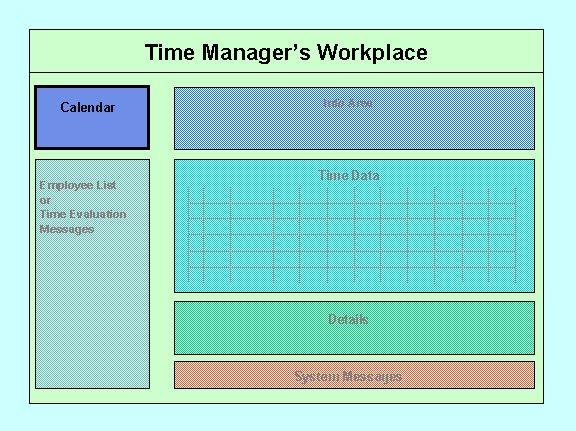
You can use the calendar in the Time Manager’s Workplace to select the time period for which you want to process or display time data. Using the calendar, you can also enter data for the entire period at the same time.
Use
A period is automatically selected when you access the Time Manager’s Workplace. You define the duration of this initial period when you customize the profile settings in the IMG for the Time Manager’s Workplace.
If you want to process another time period, you can choose one of the following navigation options:

The scrolling, customer-specific periods, and go to current day functions are available only in the calendar with the enhanced navigation area. If you want to use this calendar, select it in the Implementation Guide for Personnel Time Management under Time Manager’s Workplace -> Screen Areas -> Choose Calendar.
To show or hide the calendar, choose Settings ® Show/hide calendar.
If you want to show the calendar, the employee list must also be displayed in the Time Manager’s Workplace
Activities
|
To select... |
Proceed as follows |
|
A day |
Use the mouse to click on the required day. |
|
Several days, weeks, or months |
Note: Weekends are automatically selected for periods spanning more than one week. |
|
A week |
Use the mouse to click on the column heading of the required calendar week. |
|
A month |
Use the mouse to click on the column heading of the required month. |
|
Current day |
Choose Goto Current Day. |
|
Default period defined in BAdI |
|