

 Highlighting project objects
Use
You can use highlighting to obtain an overview of project objects that have particular assignments, characteristics, and states. The system highlights those project objects that meet your selection criteria. You can always highlight an assignment, characteristic or state in the table area.
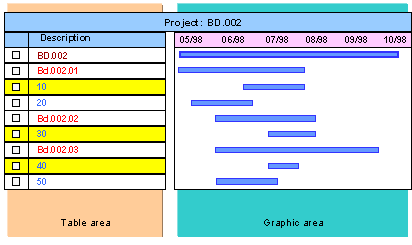
The following selection options are available in a separate subscreen:
Object with Assignment
You can use these selection criteria to highlight objects that have assignments, for instance, maintenance orders, assets under construction, or activities.
WBS Element With Attribute
You can use these selection criteria to highlight WBS elements that are, for instance, account assignment elements, billing elements, or statistical elements.
Activity with Attribute
You can use these selection criteria to highlight activities that are, for instance, internal processing activities, external processing activities, or general cost activities.
Object with State
You can use these selection criteria to determine, for example, for which project objects the scheduled dates are no longer current, maintenance orders are running late, or for which material components purchase requisitions and reservations have not been activated.
You can then use the relevant function to update the scheduling, or activate purchase requisitions and reservations etc.. For more information see
Functions in the Gantt Chart.Prerequisite
The system can only highlight those project objects that are displayed in the table area. Project that are hidden are not taken into account.
Procedure
Highlight project objects
 .
. A selection subscreen appears on the left-hand side of the screen with an overview tree containing all four selection categories.
The system highlights in color those project objects that meet your selection criteria.
Closing the Selection Subscreen
To close the selection subscreen and return to the project planning board, choose  above the table area. The highlighting in the table area is kept.
Undoing Highlighting
If you want to undo the highlighting, open the list box to the right of and choose Undo highlighting. The highlighting disappears.

Highlighting cannot be saved by the system.
Example
You are an MRP controller and want an overview of all the activities that are assigned material components. By using highlighting you can select all the relevant activities, and then process the information further by going to the relevant detail screens.