Entering content frameProcedure documentation Using the Data Extract Browser Locate the document in its SAP Library structure

Use

The Data Extract Browser is a report tool used to view the data extract containing the data extracted and retained by DART.
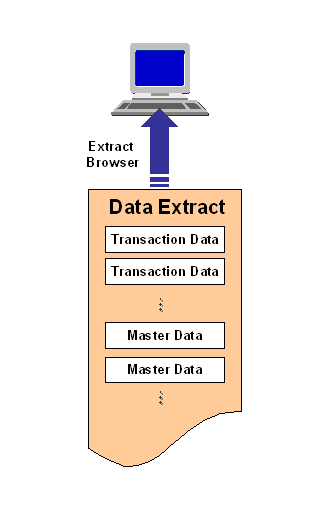
This graphic is explained in the accompanying text

Although the data extracts containing the extracted data are in a text format, they are not intended for direct reading with a text editor or a spreadsheet program. We recommend that you use the Extract Browser tool to view data in the extract.

Prerequisites

You must have the appropriate authorization to view the data extract.

Procedure

  1. In the main DART screen, choose Information system ® Data extract browser
  2. Enter the name of the extract that you wish to view, and its directory set.
  3. Choose Execute.
  4. The system displays a list of the segments in the data extract.

  5. At the list of segments you may perform one of the following tasks:

Task

Action

Display the names of the segments alongside the segment description

Choose Show technical names.

Display the contents of a particular segment

Click on the segment line.

  1. If the Enter query conditions dialog appears, specify company code, period (if available), and any additional selection criteria for the index field of the segment.
  2. The system displays the records that satisfy the selection criteria from the segment:
  • To save the contents of the segment that is displayed into a text file, choose Export to file.
  • To display all the fields of a particular record in the segment, double-click on its line. The system displays all the fields in that record, along with their values.

View the parameters used to create the data extract

Choose Gotoà Data extract info.

Obtain statistical information (the size of each segment, its compression ratio, and the time it took to extract it)

  1. Choose Data extract info.
  2. Choose Data segment statistics.

Download a complete segment.

  1. Set the Export all records to file indicator.
  2. Click on the segment line.
  3. If the Enter query conditions dialog appears, specify company code, period (if available), and any additional selection criteria for the index field of the segment.
  4. Choose Output options for export to file.
  5. Enter the Filename. The Start Time dialog screen appears.
  6. Schedule the start time
  7. Save.

View an unformatted data extract.

  1. Click the Data extract icon.
  2. Choose Data segment statistics.
  3. Click the segment line.
  4. Execute to display data extract file records. The unformatted data will appear.


Note

Depending on your system's setup, the selection of records for the query may time out if you select a large number of records.

To prevent a time out, you can limit the amount of records that you see when you display the contents of a particular segment. Do so by entering a number at the Maximum number of hits field at the top of the Data extract browser screen. The default value is 500 records.


Leaving content frame