
 Part 8 - Versions
Use
When there are several versions of a referenced test script, eCATT automatically finds the one appropriate to the software component and release level of the target system.
Procedure
On the Extended Computer Aided Test Tool: Initial Screen, select Test Script.
In the Test Script field, enter the name of the test script that you created in part 5 of this tutorial (XYZ_VARIANTS).
In the Versions field, enter 2.
Choose  .
On the Attributes tab, enter a title. For example Second Version.
Choose the Editor tab.
.
On the Attributes tab, enter a title. For example Second Version.
Choose the Editor tab.
The command editor is empty.
The parameter list has all the import and export parameters of the first version. You should not change the names and types of these parameters. However, you may change the default values.
Local variables are not retained from the first script. You are free to define any new local variables.
Create a new local variable called EPSILON with a default value 1.
Create a new set of commands in the command editor.
DELTA = ALPHA + BETA + GAMMA + EPSILON.
CHEVAR ( DELTA <> 13 ).
Execute this test script.
Now try to execute the test configuration that you created earlier. It does not work. There are now two versions of the test script and the test configuration does not know which one it should use.

You need to specify the software component and release for which each version is valid. You do this on the Attributes tab of each version.
To find information about software components, choose System -> Status, and in the System Status dialog box choose  .
.
In the first version of the test script, enter the software component and release of the system that you are running eCATT in. For example, SAP_BASIS and 620. The same software component is now also in the second version. Try to enter the same release information. This does not work - you cannot enter the same combination of software component and release information that you have specified in another version of the test script. Now enter a different release (for example 630).
Make the target system, of the test configuration, the system that you are running eCATT in.
Execute the test configuration.
Examine the log and determine which version of the script has been executed.

Change the target system to one that matches the software component and release specified in the second version of the test script.
Execute the test configuration.
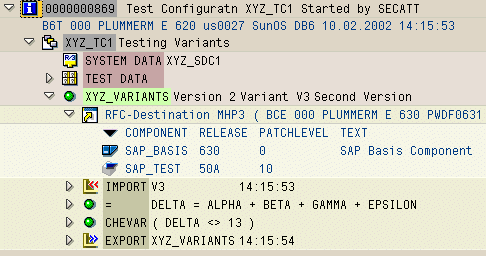
Summary
The implementation can be totally different from version to version.
The import and export parameters are the same in all versions.