Entering content frameBackground documentation Part 7 - Using Test Configurations and Variants Locate the document in its SAP Library structure

Use

A test configuration contains references to the test script, system data, and test data needed to execute a test.

Prerequisites

You have created a test script and a test data container as described in part 6 of this tutorial. You have created a system data container as described in part 5 of this tutorial.

Procedure

Create a Test Configuration

  1. On the Extended Computer Aided Test Tool: Initial Screen, select Test Configuration and enter a name for the test configuration. Call it XYZ_TC1 (where XYZ are your initials).
  2. Choose This graphic is explained in the accompanying text.
  3. The test configuration editor appears.

  4. Choose the Attribute tab and enter the required information in the Title and Component fields.
  5. Choose the Configuration tab.
  6. In the Test Script field, enter the name (XYZ_VARIANTS) of the test script you created in part 6.
  7. In the System Data Container field, enter the name of system data container ( XYZ_SDC1 ) that you created in part 5 of this tutorial.
  8. In the Target System field, enter NONE.
  9. Choose This graphic is explained in the accompanying text, and save as a local object.
  10. Create a Variant Manually

  11. Choose the Variants tab.
  12. You see that the ECATTDEFAULT variant has the parameters ALPHA, BETA, and GAMMA. The parameters have the values specified in the test script. Only input parameters in the test script are visible in the test configuration. You can create other variants that have different values for the parameters.

  13. Choose This graphic is explained in the accompanying text to create a new variant. Name it VAR1.
  14. Choose This graphic is explained in the accompanying text to create a new variant. Name it VAR2.
  15. Enter values in some fields of the variants as shown in the table below:
  16. Variant

    ALPHA

    BETA

    GAMMA

    ECATTDEFAULT

    1

    2

    3

    VAR1

    3


    VAR2

    5

    3

    6

  17. Choose This graphic is explained in the accompanying text.
  18. Choose This graphic is explained in the accompanying text.
  19. The Start Options dialog box appears.

  20. Leave the Variant and System fields empty.
  21. Choose This graphic is explained in the accompanying text.
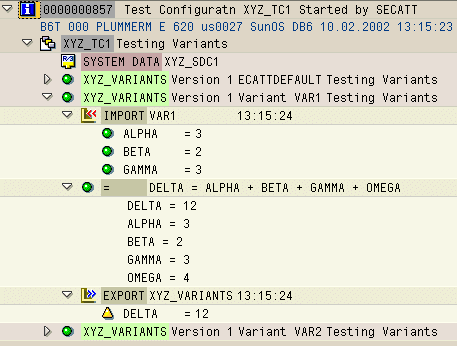
  22. Examine the log. The script has been run three times; once for each variant. The default values have been used where no value has been specified.
  23. This graphic is explained in the accompanying text

  24. Execute the test configuration again. This time enter VAR1 in the Variant field of the start options. Only the selected variant is tested.
  25. Create a Variant from a Test Data Container

  26. In the test configuration editor, choose the Configuration tab.
  27. Choose This graphic is explained in the accompanying text.
  28. In the Test Data Container field, enter XYZ_TD1.
  29. In the Alias field, enter A1. The alias is used on the Variants tab to refer to this test data.
  30. Now add test data container XYZ_TD2 with alias A2.
  31. Choose the Variants tab.
  32. Choose This graphic is explained in the accompanying text.
  33. The Wizard appears. The left half of the screen displays the variants in a test data container. The right half of the screen displays the variants in the test configuration.

  34. Scroll through the test data containers using This graphic is explained in the accompanying text and This graphic is explained in the accompanying text.
  35. Select variant V3 from test data container A1 and choose This graphic is explained in the accompanying text Attach as Variant. Only the parameters in the test data container that match those of the test script are appended.
  36. Choose This graphic is explained in the accompanying text.
  37. The variant is now displayed on the Variants tab.

  38. Execute the script and look at the log.

This graphic is explained in the accompanying text

All variants have been executed.

Summary

If no value is specified for a parameter in a variant, the value from the ECATTDEFAULT variant is used.

Values can be entered directly into a variant, or be held as references to values in test data containers.

Using the start options, you can choose to execute using only one variant.

Leaving content frame