

 Test Script Editor
Use
You use the test script editor to create and maintain test scripts. You can use the recording functions, or directly input eCATT commands into the command editor.
The test script editor has the following areas:
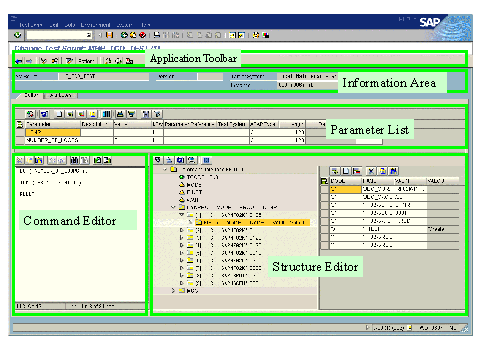
Parameter List
The parameter list contains the parameters and the command interfaces. You can toggle between the display of parameters and command interfaces by choosing  .
.
When you make changes in the parameter list, you can refresh the list by choosing  . This not only refreshes the display, but also re-reads the definition of the ABAP Dictionary reference (from the target system if specified) of each parameter and recreates the structure of structured parameters. Values in a structured parameter are retained in fields of the same name in the recreated structure.
Values of simple parameters are displayed and edited in the parameter list.
When defining structured parameters in the parameter list, you assign ABAP Dictionary references in the Parameter Reference field. For example, if you want to reference SPFLI and enter:
You can display the values of a selected command interface or structured parameter by choosing  . The values are displayed in the structure editor, where they can be edited.
In the parameter list, you define the visibility of parameters. This determines whether a parameter is treated as an export parameter (E), an import parameter (I), or a local variable (V).
Command Editor
The command editor is a basic text editor. Here, you enter eCATT commands:
You can use  to save the contents of the command editor to a local file. Local files can be edited in standard text editors such as Notepad.
When you use  to load commands from a local file, it overwrites everything in the command editor.
You can display a command interface in the structure editor by double-clicking the name of a command interface. If the command interface does not yet exist it is also entered in the parameter list.
You can use  to check the syntax in the command editor. If you have entered a statement containing a command interface that does not yet exist, the command interface is automatically entered in the parameter list.
Structure Editor
You use the structure editor to display and edit a structure. A structure can be a command interface or a structured parameter.
Displaying Structures in the Structure Editor
When you first open the script editor, the structure editor is not visible. To display a structure, double-click it in the parameter list or command editor. As an alternative, you can select the structure in the parameter list, and choose . The structure editor then displays the selected structure.
The left-hand side displays the selected structure as an hierarchical tree. You can click on the nodes to expand or collapse the tree.
Assigning Values
You maintain the values of a structure in the right-hand side of the structure editor. To display fields of a structure for editing, double-click the corresponding elements in the tree. The selected elements are displayed in the right-hand side of the structure editor.
Values can be initial, fixed, or parameterized. This is indicated in the tree by the following symbols.
Symbols used
|
Symbol |
Meaning |
|
|
The value has been parameterized. |
|
|
No value has been assigned. |
|
|
A fixed value has been assigned. |
You can use the screen simulation to help parameterize transactions. To go to the screen simulation, select the screen that you want to maintain and choose  .
.
Downloading Test Scripts
You can
download a test script as an XML file.


