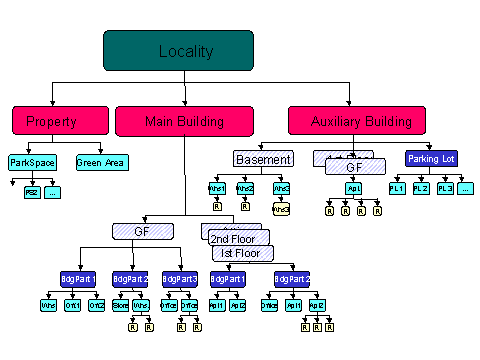
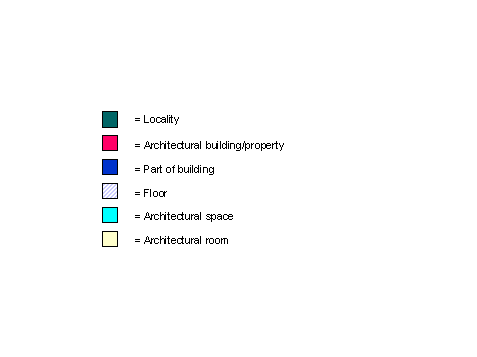
Architectural Structure Overview Graphic
In this example, the superordinate object is the locality, but you can use any other architectural object (such as object or building). First you have to make the necessary settings in Customizing. Choose the following task level menu:
Customizing ® Flexible Real Estate ® Master Data ® Architectural View ® Architectural Object Type ® Process Architectural Object Types
Several ways of creating a structure are shown in this example. To map a structure that corresponds with the circumstances of your objects you first have to define the superordiate objects that are permitted for each architectural object type. To do so, choose the following path in the task level menu:
Customizing ® Flexible Real Estate ® Master Data ® Architectural View ® Architectural Object Type ® Define Allowed Object Type Hierarchy
 You have defined the object type Floor as being the superordinate object type for a part of building. In this case you can only insert the part of building object type under the floor level (see Main Building example). At the same time, you can also define a part of a building as being the superordinate object type for a floor. In this case, the part of building can either be above the floor or on the same level in the hierarchy (see Auxiliary Building example).