

 Displaying the Cycle Overview
Use
The cycle overview provides a profile of all
cycles of a given type, including the segments belonging to this type. You can display cycles for:Prerequisites
You have created cycles.
You are on the execute screen for the allocation or reposting to be carried out. To call up the cycle overview, choose Extras ® Cycle ® Display overview.
Features
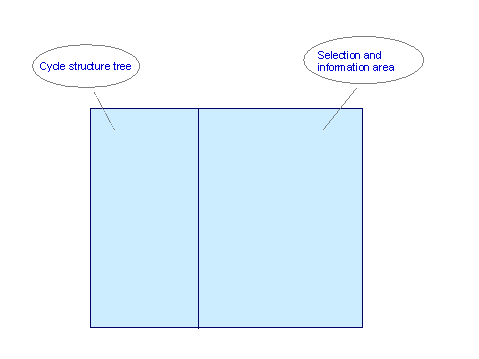
Cycle Tree Structure

You have accessed the cycle overview on the execute screen for an actual assessment. The tree structure now displays all the cycles, including the segments for the actual assessment.
The system highlights the selected object in the tree structure and displays the data belonging to the object in the selection/information area.
To do so, choose Print view.
To do so, choose Print entire hierarchy.
To do so, choose Change layout.
If you have already defined your own layouts, you call access them by choosing Select layout.
You can save the current display of the structure tree by choosing Save layout and entering a name for the layout.

If you have selected many additional columns, you can display the screen areas horizontally. You can display all the columns in a structure tree. To do so, choose Settings ® Up in structure tree.
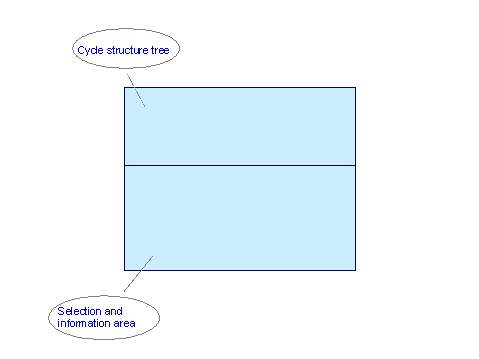
To do so, choose Change drilldown.
You want to search for all cycles created by a certain user. You can do this by sorting the structure tree alphabetically using the created by field.
Selection/Information Area
Selection criteria
Cycle Information
To do so, Double click on the corresponding object in the tree structure.
The system displays the following data:
For cycles
For segments
To display the receiver, choose Display receiver.
To do so, choose Execute cycle.
To do so, choose Display cycle, Change cycle, Create cycle, or Delete cycle.
(see
The system transfers the corresponding data on the cycle.
When you save changes to a cycle or segment in the cycle maintenance, the system updates the structure tree and the cycle information in the cycle overview.
To do so, choose Refresh.
Processed to date
The overview is sorted by
You have selected all cycles for the actual distribution and displayed them in the structure tree. If you now choose the Processed to date tab, the system displays all the cycles already executed for the actual distribution.
Choose Back or F3 to return to the cycle overview.