Selecting Organizational Units 

Use

This section describes how to include the organizational units for your structure scenario in a drawing page.

Prerequisites

The following guidelines will make it easier for you to work with structure scenarios. When you portray an organizational structure in the Structure Modeler, start with instances of R/3 System organizational units nearest the bottom in the tile stack.

For example, to portray your scenario from the Accounting perspective, it is best to start by portraying the R/3 System. If you do not want the R/3 System shown, start with the operating concern.

Example: Accounting
This view contains instances of the following R/3 System organizational units:
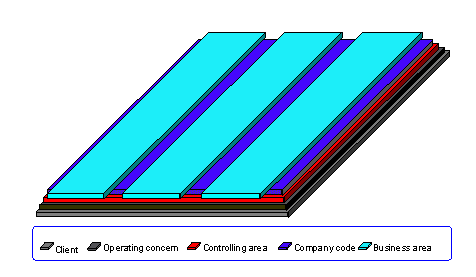


Procedure

  1. To portray an organizational unit, point the mouse cursor to the area in the left panel to which the organizational unit you require is assigned.
  2. Drag the instance of the selected area onto the drawing page. Release the mouse button. A window appears containing the organizational units assigned to this area.
    Example:
    The area "Cross-Application" contains the organizational unit "Client".
    The area "Accounting" contains the organizational unit "Operating concern".
  3. Choose the organizational unit you require. A tile appears on your drawing page to represent an instance of the R/3 System organizational unit.
  4. You may enter data for each instance. Place the mouse cursor on the tile and press the alternate mouse button. Choose Data and enter the required information.
  5. To display the name of the selected organizational unit, place the mouse cursor on the tile and press the alternate mouse button.
    Choose NameàShow. The name proposed by the Structure Modeler is the name of the R/3 System organizational unit. You can change this name by choosing Edit on the alternate mouse button.
    The name appears in a text field. You can place the text field and the related pointer wherever you wish.