
InfoSet Display
You can see the InfoSet Display on the following screen.
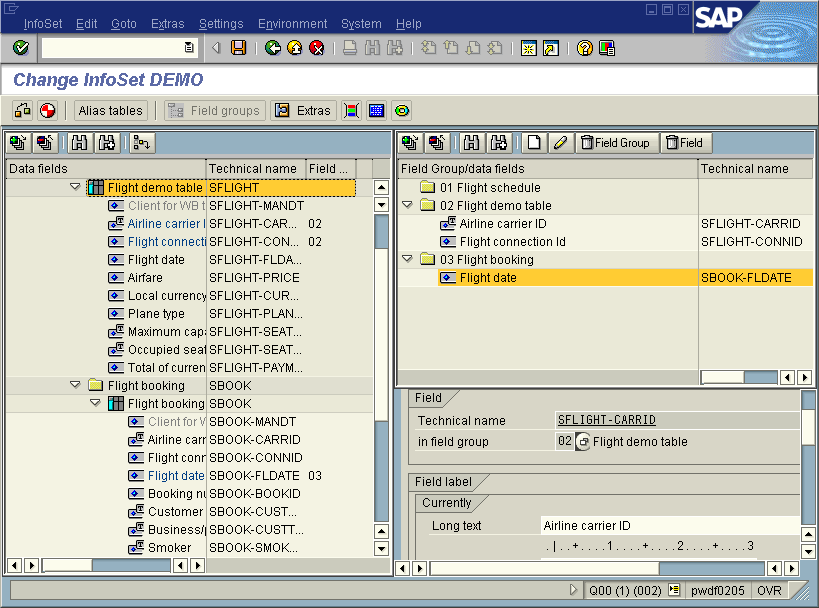

If you select Change on the initial screen, the screen above is subsequently displayed. Although you can still return to the title screen by choosing Goto
The data source structure (logical database, table join, table) with the corresponding enhancements (additional tables, additional structures, additional fields) is displayed as a tree in the left half of the screen. Each field is marked with an icon. The icons Simple Field and Field with Text are possible. In the first case, a field can only be provided with its own values. In the second case, a text can be automatically created for each field value. You can find more information under Text fields. Two columns containing the technical names and assignment for a field group are assigned to each field.
With logical databases this tree mirrors the logical database’s structural tree and contains all its tables along with the hierarchical relationships that have been defined between them. With InfoSets using logical databases from the HR application, the tree contains all info types that have been copied into the InfoSet by the InfoSet Generator. These information types also appear next to each other on the same level.
The fields defined by the dictionary for a certain table, as well as additional fields that have been explicitly assigned to the table, hang underneath every table.
These fields appear behind the actual table fields and represent an enhancement of the original table.
The field groups are displayed as a tree in the upper right part of the screen. The same icons as found in the data source (left) and the technical names are assigned to each field in a separate column. The tree display makes it possible here, as well we in the data source, to expand and collapse to the section you want to see on the screen.
Creating and changing field groups is possible using special functions that can be found as pushbuttons above the field groups. To select fields for field groups, first select the fields you want with a single mouse click in the data source. These fields can then be transferred using drag&drop into the field group of your choice. It is also possible to select the relevant field group with a single mouse click and call the function Add Fields to Field Groups.
Double-clicking on a field in the data source or in the field group displays all the technical information for this field in the lower right part of the screen. You can change long texts and headers as and when necessary here. It is possible to mark every numerical field as one that ‘cannot be summed’.
When you call the functions  Extras,
  (Selection),
  (Coding) and
  (Enhancements), corresponding maintenance screens are shown in the right part of the screen. With
  Field groups you can display field group maintenance again. The following sections tell you about the options that are available to you when you use these functions.