 Saving and Redisplaying Lists
Saving and Redisplaying Lists
When you execute a query, SAP Query evaluates the data from a database and outputs the results in a list. This list disappears as soon as you exit the list display. If you want to redisplay the same list later, you have to execute the query again with the same selections. And the system has to re-evaluate the database. This is unsatisfactory, especially if you are dealing with lists such as year-end
closings, which do not change, but you need to display them often.SAP Query allows you to save any lists you have generated and to redisplay them later. When you display a
list, which has already been saved, no more database accesses are necessary. For this reason, the response time is considerably faster than recreating a list by executing the query again.Saving Lists
Execute a query of your choice. For example, suppose you want to start the query G1 from the user group FB (for information about how to create this query, see the next chapter). After you have entered your selections and selected ABAP List for the list output, a list similar to the one below is displayed.

To save this list, choose Save.
You then see an overview of all the lists already saved for this query:
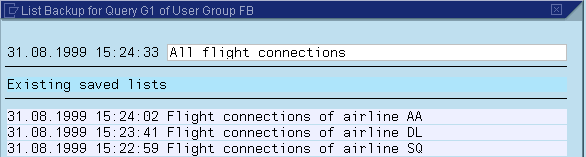
On this screen, you identify each list by the date and time it was created. There is also an explanatory text for each to help you locate the right list.
Your current list is the first entry. The system shows the date it was created. You have to add the explanatory text.
To save the text and the list, select Continue. This returns you to the display of your current list.
Redisplaying Lists
To redisplay a
list, which has already been saved, select Goto ® Saved lists on the initial screenYou then see an overview of the lists already saved for that query
.
To choose and display a list from the overview, place the cursor on the desired list and choose Display. The saved list is then displayed on your screen.

If you want to know which selections were used to create the list, use the Selections function.

When saved lists are displayed, not all conditions may be reproduced as you remember them. Colors, for example, are not always the same. Also, symbols and icons are not displayed in saved lists. To get the original display, you must generate the list by executing the query again.
To delete any lists you no longer need, select them in the first column and use the Delete sel. lists function.
For each saved list, you can see how many records are occupied in background storage. Each record contains about 2900 bytes.
If you want to execute one of the interactive functions described in the section
Interactive Functions for Further List Processing, the system requires certain parts of the generated query report. If any changes you make between saving the list and redisplaying it affect the structure of the sublists by altering the sequence of the fields displayed, you may not be able to execute these interactive functions. However, you can still display the list.
You cannot use interactive functions to display saved lists (see