 Cancellation Posting
Cancellation Posting
If a cancellation posting is necessary for the R/3 system, you need to cancel the posting in the system that initiated the transaction. If you entered a goods movement in the Inventory Management component first, then you should also post the cancellation in this component first.
If you want to cancel a goods movement in Inventory Management, you need to distinguish between the following situations:
Cancellation Posting Before Creating the Transfer Order
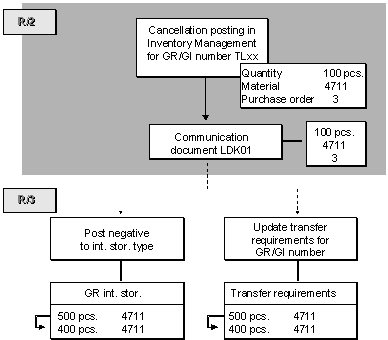
If the quantity concerned is still in the interim storage area, the following updates take place in Warehouse Management during the cancellation posting:
A cancellation posting which takes place before a transfer order has been created is illustrated below:
Cancellation Posting After Creating the Transfer Order
If the goods have already been transferred, the following updates take place in Warehouse Management:
A cancellation posting which takes place after the creation of a transfer order is illustrated below:
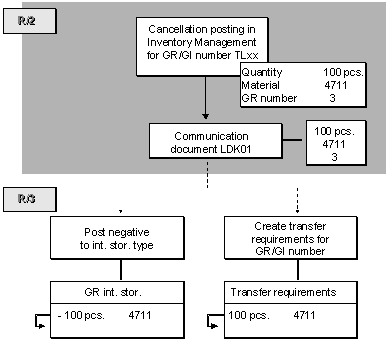
For the cancellation posting, a transfer order with a reference to the transfer request or the posting change notice needs to be created.
It is also possible that a partial transfer takes place. In that case, it is a mixed process.
Entering the Cancellation Document
When you are entering the cancellation document in Inventory Management, you can enter the canceled document in an additional screen. This screen is displayed only if you set an indicator in the table for the movement type control. (See
Connecting R/2 Movement Types to R/3 Movement Types.)