Exercise 1: Generate and Install DCOM Proxies 

Prerequisites

Procedure

To generate and install DCOM proxies:
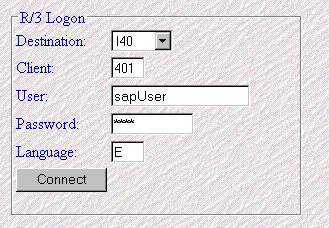
  1. Start the user interface for the DCOM Object Builder by clicking the Wizard pushbutton.
  2. Enter the connection parameters in the R/3 Logon section.
  3.  

  4. Test the RFC connection by clicking the Connect pushbutton.
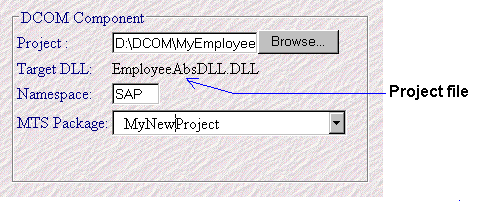
  5. Under Project, enter the project directory and the name of the project file. Use the Browse pushbutton to search for the correct name.
  6. If required, assign a namespace identifier other than the system name under Namespace.
  7. Assign the DLL to be generated to an MTS package. Under MTS Package, select a package, or specify the name of a new package to be created.
  8. Choose Business Objects.
  9. On the selection screen, click R/3 Business Objects.
    The DCOM Object Builder displays all BOR objects for the selected system for which BAPI methods have been defined.
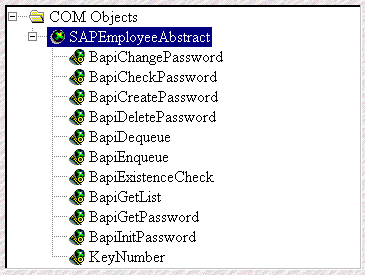
  10. Select the component to be generated, EmployeeAbstract, and choose the Add ® pushbutton.
    The selected component is copied into the selection screen for the generation process and inserted into the structure underneath COM Objects.
  11.  

  12. Choose the Generate Component DLL pushbutton to start the generation process.
    The DCOM Object Builder assigns the selected component to Projectfile.DLL.
    In the first step of the generation process, the DCOM Object Builder generates the source files. In the second step, it creates the DLL and the type library.

    Note:
    Before starting the generation process, the DCOM Object Builder checks if a version of the component is already registered in MTS.
    The DCOM Object Builder also checks if a DLL of the same name already exists in the project directory.

    Note:
    If the DLL cannot be generated, see log file Project.log in the project directory for the potential reasons.
  13. After the generation process is completed successfully, the Install Components in MTS pushbutton becomes active.
    Click this pushbutton to start the installation process.
    The DCOM Object Builder is called to install the generated DLL in the specified MTS package. After the installation process is completed successfully, a ticker saying Your DCOM Components are succesfully generated and installed ! is displayed.

Result

During installation, the DCOM proxies are entered into the Windows Registry.

How to Continue

Exercise 2: Include Controls and the Type Library