Worklist
Worklist
Use
Using the worklist you select the configuration folders and Baselines that you want to process or display in the CM Workbench.
Features
The worklist contains two overview trees:
The objects in the favorites tree are kept permanently in the worklist.
When you create a configuration definition it is automatically transferred into your favorites.

The system always saves your favorites when you select  or
or  .
.
The objects that the system found in the last search are displayed in the selection tree.
To find an object (such as configuration folder or Baseline) select  . The system displays the found objects in the selection tree.
The configuration folders and Baselines in the selection tree are only kept temporarily in the worklist. If you want to permanently keep a folder or a Baseline in your worklist, use Drag & Drop to move them from the selection tree into the favorite’s tree.
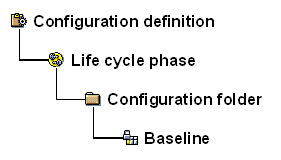
The overview tree is made up of a hierarchical structure.
Hierarchical Structure within the Worklist
Icons in the application toolbar
Icon |
Function |
What you ought to know |
|
Expand subtree |
|
|
Compress subtree |
|
|
Search |
With this function, you only look for the objects that are already in your worklist. If you want to look for other configuration folders or Baselines, choose |
|
|
|
|
Choose layout |
|
|
Add folder or Baseline to favorites list |
Using the dropdown menu next to the button, you can also select folders or Baselines to remove from your favorite’s list. |
|
Details |
By clicking on this button, you display the contents of a folder or Baseline in the other screen areas of the CM Workbench. |