
Pushbuttons with Icons on Data Screens
On data screens, you can use icons for pushbuttons with no fixed position for a number of functions.
Generally, you should use a text on an iconized pushbutton only, if absolutely required.

"Find icon" and complete text Find note.
Horizontal and Vertical Scrolling
Icons for Horizontal Scroll Functions
You can use the following icons for horizontal scroll functions:
Appearance and Position
Only functions that are supported by the program are displayed as icons without a tetxual label (right-aligned below the step loop from left to right). Choose a width just large enough for the icon to fit. Leave one blank spacing between the pushbuttons.
Total left |
Page left |
Column left |
Column right |
Page right |
Total right |
|
|
|
|
|
|
TOTAL_ |
PAGE_ |
COLUMN_ |
COLUMN_ |
PAGE_ |
TOTAL_ |
Icons for horizontal scroll functions (use the arrangement show)
Icons for Vertical Scroll Functions
Use icons for the vertical scroll functions only when there are several step loops on a screen or one step loop on a long screen:
Appearance and Position
The pushbuttons should be positioned to the right of the step loop (on top of each other). As an exception you can position them right below the step loop with one blank spacing. Possible pushbuttons for horizontal scroll functions should be arranged as a separate group (four characters spacing) to the left of the vertical scroll buttons.
First page (F21) |
Previous page (F22) |
Next page (F23) |
Last page (F24) |
|
|
|
|
FIRST_PAGE |
PREVIOUS_PAGE |
NEXT_PAGE |
LAST_PAGE |
Icons for vertical scroll functions (arranged as shown or vertically from left to right)

As soon as table controls will be available as a new graphical element these iconized functions will be superfluous. Table controls have separate horizontal and vertical scoll bars.
Spin Buttons
A spin button is a control element for the sequential display and/or input if mutually exclusive alternatives. Use spin buttons to display or enter alternatives with a logical ascending order, for example, the months of the year.
Appearance
You display the functionality of a spin button using an input field and one of the following icons (see illustration) always without a textual label:
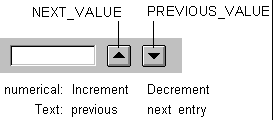
Spin Button example
Two pushbuttons to the right of an input field, one character spacing (spin button) with the meaning (from left to right): "Increment" and "Decrement" (numeric values) and "Previous entry" and "Next entry" (texts).
Use with Alphanumeric and Numeric Values
When choosing alphabetical entries (for example, month, weekday) the upwards pointing arrow means Previous entry and the downwards pointing arrow Next entry.
With numeric values, (for example, the rotation angle of an object, time) the upwards pointing arroiws means Next value (Increment), the downwards pointing arrow Previous value (Decrement).
At the beginning or the end of the list the system accesses cyclically the other end of the list.
Word Processing Functions
The following functions are usually displayed as minimum width pushbuttons without a textual label. You should position them in the work area in a way that makes the intended reference obvious (usually to the right of an object). You should use text only if absolutely required. Example: If the address icon for different types of addresses is used (shipping address, order address etc.), you have to complete the icon with a corresponding text.
(Change) Text (word processing)
Scheme:
Text |
Edit Mode |
Display Mode |
no text |
Create text, active |
Create text, inactive |
no text, protected |
Create text, inactive |
--- |
text exists |
Change text, active |
Display text, active |
text exists, protected |
Display text, active |
--- |
(Change) Note, Comments
|
CHANGE_TEXT |
(Change) text |
|
CREATE_TEXT |
Create text |
|
|
DISPLAY_TEXT |
Display text | |||
|
ANNOTATION |
(Change) annotation |
|
CREATE_NOTE |
Create note |
|
|
DISPLAY_NOTE |
Display note |
Icons for text/word processing and annotation functions
Other Services
For other services you can use the following functions:
|
CALCULATION |
Spreadsheet, Calculation |
|
GRAPHICS |
Graphics |
|
SHORT_ |
Short message |
|
ADDRESS |
Address |
|
INFORMATION |
Information |
|
SET_STATE |
Set state |
|
VARIANTS |
Variants |
|
TOOLS |
Tools |
|
EXPORT |
Export, Download |
|
IMPORT |
Import, Upload |
Icons for further functions
Functions for Table Structures
You can use icons for the following table structure functions (see illustration):
|
MOVE |
Move |
|
REPLACE |
Replace |
|
INSERT_ROW |
Insert row |
|
DELETE_ROW |
Delete row |
|
SEARCH |
Search |
|
SEARCH_NEXT |
Search next |
|
SORT_UP |
Sort up |
|
SORT_DOWN |
Sort down |
|
SUM |
Totals |
|
SELECT_ |
Select detail |
|
EXPAND |
Expand |
|
POSITION |
Position |
|
COLLAPSE |
Collapse |
|
SELECT_ |
Select Block |
|
SELECT_ALL |
Select all |
|
DESELECT_ |
Deselect all |
Icons for table structures
Appearance and Position
Iconized pushbuttons are usually positioned left aligned with one character spacing below the table control and/or the step loop. You can use icons with or without textual labels. Icons should have text if there is enough room below the step loop and/or id the text explains the function of the icon. If there is not enough room, you can also position the pushbuttons to the right of the table control and/or the step loop (aligned with the bottom hortizontal border of the table control).


