 Settings
Settings
Use
With the settings, you can determine:
Prerequisites
If you want to export the data to Crystal Reports, you must have them installed on your local PC.
Activities
You get to the dialog box Settings.
On the Output tabstrip, you can determine the type of output list and the output format as well as whether the query is to be started via a selection screen.
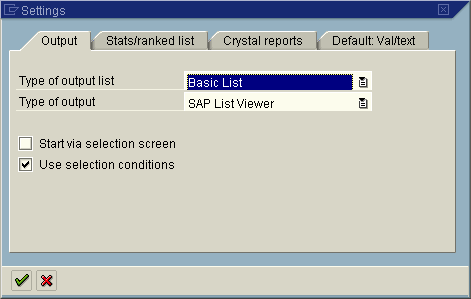
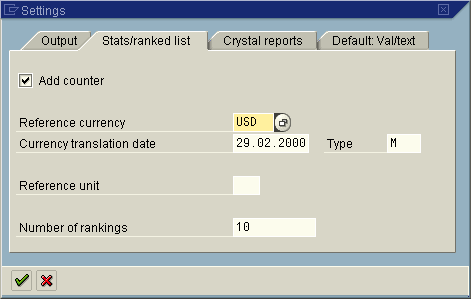
On the Statistics/Ranked List tabstrip you can determine the reference currency for the conversion of currency fields as well as the reference unit for converting units of measurement. Also in this tabstrip, you can determine how many ranks are displayed in a ranked list.
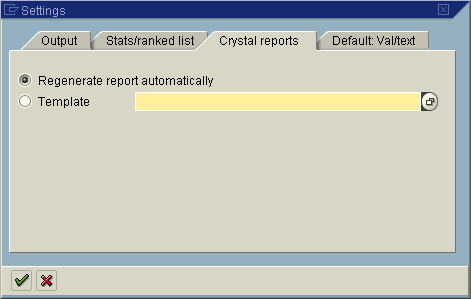
The tabstrip Crystal Reports allows you to determine how the Crystal Reports Export runs if Crystal Reports start directly from InfoSet Query. You can create a new Crystal Report every time you export, or export the data to an existing Crystal Report on the local PC.

If you export the results list of the query over the output list (ALV) to Crystal Reports, these settings are overridden and those settings that were made in the ALV apply.
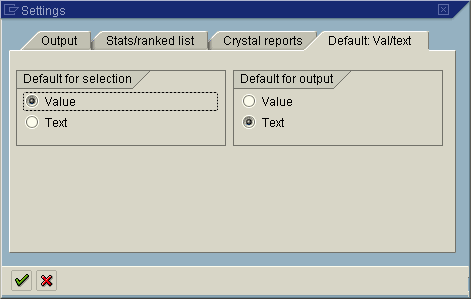
The tabstrip Default: Value/Text allows you to determine whether the value or the text is used when you select a field using either drag & drop or the check boxes. You can override these proposals by choosing the context menu when you select a field.
 .
.Result
The entries are transferred for the current query.
When you have set up the Crystal Reports Export, the path for the Crystal Report template is saved with the query. Whereas the template itself is not saved with the query.
It you want the query and the Crystal Reports template to be available for other users, save the template in a directory that can also be accessed by these users. Otherwise, other users are not able to use the query and the template because the template is not saved with the query.