 Rental Unit: Office

Rental Unit: Office
Displaying Rental Unit: Office
Use
A rental unit is the spatial unit on the basis of which Real Estate objects are rented. Each rental unit is uniquely assigned to a building or a property. The system automatically creates a rental unit as an internal Controlling object; in other words, the rental unit is also an account assignment object.
Procedure
Menu Path |
Accounting ® Real Estate Management ® Master data ® Object browser |
Transaction Code |
FOOBJECTBROWSER |
 . The sets assigned to this folder will now be visible.

On the RE Object Browser - Display Rental Unit screen, you can see the address which was automatically copied from the business entity. Under General data, a Usage type is defined as 0005 (Office). The Usage type controls, how the rental unit is used (commercial use, residential use), which fields/screens are ready for input when the rental unit is maintained (field status), and which area types are allowed/mandatory. The rental unit is assigned to building 12 (East Wing) and various other organizational structures, such as business area, profit center and jurisdiction codes.
Condition types are assigned to the rental unit. These condition types can include basic rent as well as additional surcharges (e.g. maintenance) for the rental unit. In our case there are two conditions assigned to this rental unit: Office basic rent and OC flat rate.
The system displays a dialog-box with a history of this condition. Here you can see how the conditions have increased or decreased, how much tax is calculated on the conditions and the Lease-outs that were effected by these changes.
 .
 .
The conditions displayed here represent the actual rent that is charged for this Lease-out. When you create a rental unit you can define the conditions for that object. During creation of a Lease-out the condition of the rental unit will be automatically defaulted. However, you are always free to make any changes to the conditions during the Lease-out creation.
until the overview tree appears.Creating a Rental Unit: Office
Use
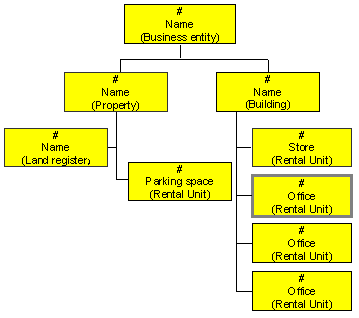
In this process you will create a rental unit with the usage type: office and assign it to your building.
Your Hierarchy
Procedure
Menu Path |
Accounting ® Real Estate Management ® Master data ® Object browser |
Transaction Code |
FOOBJECTBROWSER |
. The sets assigned to this worklist will now be visible.  . Your business entity should be now visible.. Your building should now be visible.
Now you will create a rental unit and assign it to your building.
 .
Field |
Data |
Company code |
3000 |
Business entity |
[Number of your own business entity] |
Rental Unit |
[User-defined number] |
Usage type |
0005 [Office] |
 or
 Master data.
Field |
Data |
Build.text |
[Enter a description for your rental unit] |
Building |
[Number of your own building] |
Business area |
9100 [Real Estate] |
Profit center |
9154 [Offices] |
Jurisdiction code |
PA0011000 |
. Copy. The system displays a list of all available condition types. The total of all condition amounts represents the rental rate. Field |
Data |
Office basic rent |
3,000 USD |
OC flat rate (Operating costs flat rate) |
300 USD This condition is necessary if you want to demonstrate service charge settlement. A fixed amount is prepaid for operating expenses each month. At the end of the year, the system determines the difference between the prepaid amount and the actual service charges (based on actual invoices) and settles the difference (either additional payment or credit) to the Lease-outs. |
Instead of entering the total condition amount, you can also enter the cost per Ft2. To do that, first highlight the condition by clicking on the box to the left of it and then choose the Amnt <-> Amnt./AR icon at the bottom of the screen.
The apportionment unit and factor determine how service charges are to be allocated to the rental unit. Note that apportionment unit 12 (Living/usable space) is automatically defaulted and that the factor is equal to the usable space that you entered under Areas. If you enter nothing else here, you can later allocate service charges based on Ft2. You might have service charges that you want to settle using a different allocation base (e.g. janitorial services based on headcount). If so, you have to select one/several additional apportionment units and maintain their factors.
Here, a time-dependent indicator controls which objects are available for which processes. In addition, on the bottom part of the screen you can see the object hierarchy you have already created and the location your new rental unit will take.
to go back to your rental unit.
In the availability screen of any of your master data objects you can visualize where that specific object is located in relationship to the business entity. You can also reach the master data of the objects displayed by double clicking on the objects.
Each Real Estate master data object can be assigned a functional location. This assignment links the RE module with PM and allows for tracking and scheduling of maintenance on the objects. Also note the malfunction report button on the left side of the screen. Once functional locations are assigned you can click the malfunction report button to report any malfunction at hand.
 Account assignment approval.
This action releases the rental unit so that financial posting can be made on this object. Under the Gen. Data file tab in the Status section the status of this object is set to REL meaning that the object is released.
 . until the overview tree appears.