Exercise 1: Call Function Module 

Prerequsites

Procedure

  1. Start the SAP Assistant.
  2. To log on to the system, choose SAP ® Logon.
  3. Select the target system.
  4. Enter your logon data for the selected system and confirm with OK.
    If the logon data is correct, a confirmation window appears.
  5. Close the confirmation window.
  6. Choose SAP ® Retrieve Function.
    A dialog box appears where you can enter the name of the function module.
  7. Enter RFC_CUSTOMER_GET and confirm with OK.
  8. Mark the appropriate name in the function list.
    The system displays the corresponding import parameters, export parameters, and table parameters.
  9. To get more information on one of these parameters, such as data type, length, or table structure, click on the desired parameter. If documentation exists for the parameter, it is also displayed.

  10. To call and evaluate the function module, choose SAP ® Call Function.
    A dialog box appears that contains the parameter list.
  11. Specify the export parameters listed under Importing. In our example, you can also enter an asterisk (*) for KUNNR if you do not want to specify the export parameters any further.
  12. Start the function call with OK.
  13. After the call, another dialog box appears that contains a list of the import parameters and tables.
    In our example, table CUSTOMER_T is displayed.
  14. To display the output data, click on the respective arrow in column Value.

Check Result

The result is displayed in an output table:
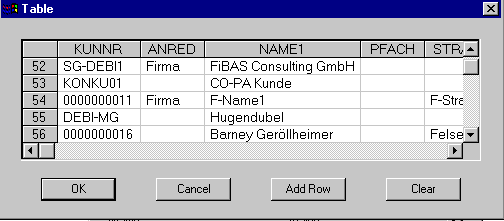
 

If you want to program a frontend application that uses the called function module, you can use the data display to

You can save the output data as an RFC file locally on your PC.