 Simulating a Vacancy Debit Position

Simulating a Vacancy Debit Position
Simulating a Vacancy Debit Position for a Rental Unit
Use
A rental unit has been vacant during January 2001. In this case you need to charge the cost of this vacancy to the rental unit. To make sure that all posting are working correctly you will first simulate a debit position for the first month of the vacancy.
Procedure
Menu Path |
Accounting ® Real Estate Management ® Rental accounting ® Postings ® Vacancy debit position ® Simulate |
Transaction Code |
FOSI |
Field |
Data |
Month of debit position |
01 |
Debit position year |
2001 |
Company code |
3000 |
Business entity |
100 |
Rental unit |
1402 |
 . Based on the period and year you entered, all related dates will be adjusted by the system.
 . The system displays a list which itemizes the vacancy charges. For your rental unit, you should see Vacancy store basic rent.
 Postings. Here you can see more detail on what type of bookings were made and to what accounts.
 until the overview tree appears.
Simulating a Vacancy Debit Position for your Rental Unit
Your Hierarchy
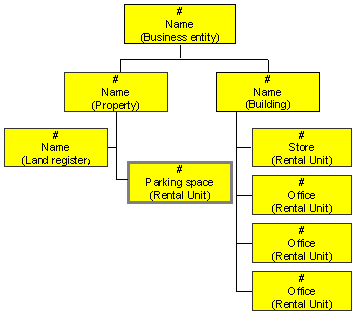
Use
Your rental unit Parking space which you have created in the Master data section has been unoccupied during January 2000. In this case you need to charge the cost of this vacancy to the rental unit. To make sure that all posting are working correctly you will first simulate a debit position for the first month of the vacancy.
Procedure
Menu Path |
Accounting ® Real Estate Management ® Rental accounting ® Postings ® Vacancy debit position ® Simulate |
Transaction Code |
FOSI |
Field |
Data |
Month for debit position |
01 |
Debit position year |
2000 |
Company code |
3000 |
Business entity |
[Your own business entity number] |
Rental unit |
[Your rental unit number (Parking space which you created in the Master data section)] |
. Based on the period and year you entered, all related dates will be adjusted by the system.. The system displays a list which itemizes the vacancy charges. For your rental unit, you should see Basic rent vacancy. until the overview tree appears.