
Using the Table View Control
The Table View control provides views of tables that have been retrieved from R/3. It also allows you to edit the data shown in the view, and automatically gets the table contents updated. You get access to a Table View control by using a variable. This is easy in Visual Basic (Version >= 4.0).
To bind a table view to a table, get the table (such as Customers) and the view (such as SAPTableView), and then notify the table that it now has a view.

‘ Establish view-table connection.
Customers.Views.Add SAPTableView.Object
Customers.Refresh
Below is a complete procedure for displaying a table from Visual Basic. The first step is to drop a table view onto a form and set its name.
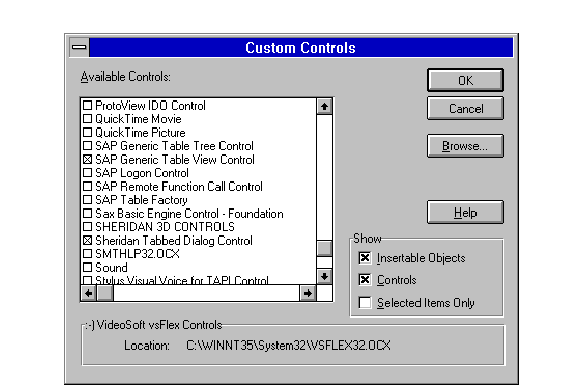
When you have retrieved the table via an RFC, connect it to the view. In Visual Basic, create a form, then select SAP Generic Table View Control in the Custom Control dialog.
An icon is placed in the toolbox . Click on this icon, and then create the control in the area on the form where you want the table data displayed. Change the name of the new object (in the Properties window) to SAPTableView (the name is optional, as long as you use the same name in the script).
Create a text-entry field, and name it (for example) NameInput. Then, add a button and add the following code to it (the click callback function):
Private Sub Command1_Click()
‘ Create function component.
Dim fns As Object
Set fns = CreateObject("SAP.Functions.1")
fns.logfilename = "c:\tmp\table+viewlog.txt"
fns.loglevel = 8
Dim conn As Object
Set conn = fns.Connection
conn.Client = "000"
conn.Language = "E"
conn.tracelevel = 6
if conn.logon(0, 0) <> True then
MsgBox
" Could not logon! "End If
Dim Customers, Customer As Object
Dim Result As Boolean
‘ Get the name to display from NameInput and call function …
Result = fns.RFC_CUSTOMER_GET(Exception, NAME1:=NameInput, KUNNR:="*", CUSTOMER_T:=Customers)
If Result <> True Then
MsgBox (
" Call error: " + Exception)Exit Sub
Else
' try to display table view.
Customers.views.Add TheTableView.object
Customers.Refresh
MsgBox "Got " + Str$(Customers.RowCount) + " rows."
End If
Set fns = Nothing
Set conn = Nothing
End Sub
The resulting form should resemble the following:
