 Defining Destination Systems
Defining Destination Systems
Use
When working with the SAP Assistant you log onto an R/3 System to get its BAPI or RFC metadata.
Before you can log onto any R/3 System through the SAP Assistant, you must set up a destination definition for that system.
Destination definitions are stored in the Windows Registry.
You may set up destination definitions for some or for all of the systems you are going to access by using the SAP DCOM Connector. You can do so before invoking the SAP Assistant, or you can do so while using the SAP Assistant. However, you should define a destination system you wish to use before logging on.
For the details of how to use the SAP DCOM Connector to define destination system, see the DCOM Connector documentation.
You can also define destinations in SAP Assistant.
Procedure
Task |
Action |
Add a new destination |
Choose Add Destination. Enter a name for the destination definition at the Dest. Name This is a string of up to 25 characters describing the destination system. |
Edit an existing destination |
Select the destination name from the Destinations list, and choose Edit Destination. |
The Edit Destination dialog appears, allowing you to define a new destination or to change an existing destination definition.
The following screen shows an example of the Edit Destination dialog for editing an existing destination:
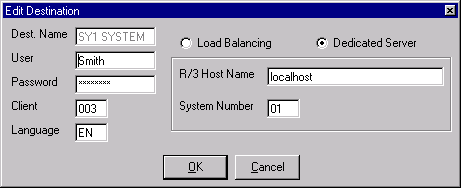
When using a dedicated server you specify the actual R/3 application server to use when logging on. When using load balancing you specify a message server which then selects the least busy application server for you to log onto.
Mode |
Field |
Enter |
Load Balancing |
Message Server |
The name of the computer acting as the message server. This can be in a format similar to: "hs0020.mynetwork.mycompany.net" or it can be an IP address. You may prefix the computer name with a router name in the following format: /H/router-name/H/computer-name |
R/3 Sys Name |
The three-character system name | |
Group |
Group name, such as PUBLIC | |
Dedicated Server |
R/3 Host Name |
The computer name of the application server to use. Use the same format as when specifying the computer name for the Message Server, including the option to use a router prefix. |
System Number |
R/3 system number |
Result
If you enter the user (user name), password, client, and language information at the Administration tab of the R/3 Logon dialog, they are kept as part of the permanent definition of the destination system. You will be able to use them whenever you log into this R/3 system using this destination definition.
As an alternative, you can specify the user ID. password, client, and language at the Logon tab of the R/3 Logon dialog, which will be valid for the current logon only.