
Modifying Excel Sheets for Travel Expenses
Excel sheets are used to enter travel expense data in the corresponding IAC. If the installed Excel sheets do not suit your requirements, you can modify them (for example, insert or remove entry fields). This section gives you a short overview of the sheets that are supplied with the standard IAC installation and describes how you can modify them.
Introduction
When you install the Travel Expenses IAC on the Web server, the Excel sheets for travel expenses are placed with the PRWW service files (in the subdirectory 99\SHEETS).
The Excel sheets EN_TRIP.xls and DE_TRIP.xls in the 99\Sheets directory are opened when the user clicks on the Download receipt entry link. We, however, recommend that you do not change these sheets, since it is much easier to modify the Excel sheet TRIP_ITS.xls. This sheet does not have standard protection. It contains additional macros that help you make modifications and translate into the relevant language, and that renew protection before sending them to the end user.
How it functions
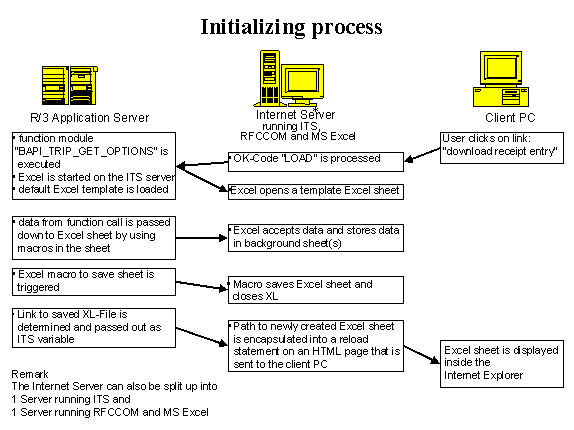
When the user clicks on the Download receipt entry link, the ‘LOAD’ command field is processed in the R/3 System. During execution of this command, several OLE calls are sent to the server specified in RFCCOM destination customizing in table T706ESS1. All of the RFCCOM destinations in table T706ESS1 are processed consecutively, taking simple load balancing between multiple servers into account. First, the OLE calls start Excel on the RFCCOM server. Then the raw templates specified for the user’s logon language are opened (for example, DE_TRIP.xls for German or EN_TRIP.xls for English). The directory the sheet is taken from is determined by the "RAW_TEMPLATE" parameter in table T706ESS2. To accelerate the loading process, you can copy the files to the local hard drive (for example, to C:\temp). After the sheet has been opened, all Customizing data derived from the EmployeeTrip.GetOptions method is transferred to the Excel sheet. The data is stored there in the background and not visible to the user. This data includes data validation rules, values for selection lists and business rules for receipts.
After initialization, the Excel sheet is protected and stored in the Web server’s static directory under a predefined name (the user’s personnel number). The directory the sheet is stored in is determined by the TEMPLATE parameter in table T706ESS2. After the sheet has been saved, a HTML page in the user’s Web browser is displayed and the browser loads the Excel sheet from the Web server. The Web server the sheet is loaded from is also determined by the Customizing settings in table T706ESS2 (parameter HTTP_OUT). The parameters TEMPLATE and HTTP_OUT both refer to the same directory. The TEMPLATE parameter specifies the UNC name and the HTTP_OUT parameter the URL name for the directory.
When the sheet has been loaded from the Web server, it is displayed on the client (either in the browser or in a separate Excel window). The user can now begin entering travel expenses or save the sheet on the local hard drive and use it as a template for entering trips.
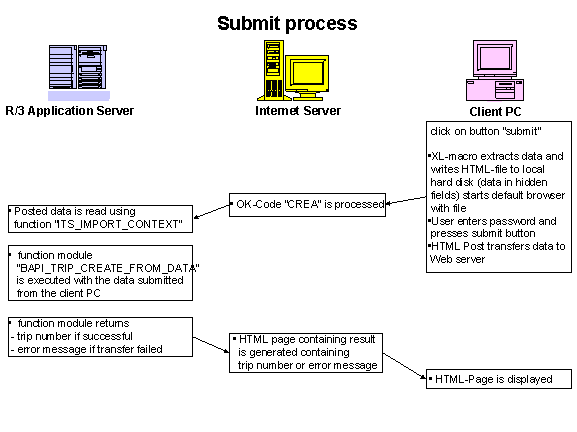
After entering the data, the user chooses Submit. This command starts the Excel macro "Submit_Web" which extracts the data entered. When the data is extracted from the sheet, it is not transferred to the Web server immediately. The data is stored in a file on the local hard drive first, under C:\EmployeeID.htm, EmployeeID being the user’s personnel number. This file contains all of the data entered in hidden HTML fields and entry fields for the user name and password (the employee may have been offline between downloading the sheet and submitting the data).
After the user has entered the password and chosen Submit, the form is transferred to the Web server. The PRWW service is started and the CREA command field is processed immediately. All of the data is extracted from the HTTP data stream and posted to method EmployeeTrip.CreateFromData.
The initialization and submit processes are illustrated in the following graphics:
Basic functions
General functions
When the Excel file is created for the employee, the "Lookup_Data" sheet is filled with the Customizing information for this employee. This sheet contains all of the information retrieved from the R/3 System (for example, expense types and countries).
When the data is entered, the "Data" sheet stores all receipt data (especially additional receipt information). All other information is stored in the relevant entry screens, to avoid duplicate storage of information in more than one place.
The "Texts" sheet contains all resource strings needed to display messages or field texts in the appropriate language so that the Excel file can be translated. If error messages are required, the "MsgText" macro (in the function module) is called. It takes the text from this sheet and replaces the variables $v1 to $v3 with the appropriate field values or other texts.
If the user opens the Excel file on the local hard drive or calls the file from the Web browser, the "Auto_open" macro is executed. This macro starts the events "Change" ("Field_OnChange" macro) and "Double click" ("Field_OnDoubleClick" macro) in the main entry screen and suppresses the Start button. (The start button is only visible in cases where the "Auto_open" macro is not executed, as in some earlier versions of Excel.
The Excel module "Submit" contains coding for extracting the entered data from the Excel file and creates a HTML file on the local hard drive. When the data is extracted, a character string is created that contains all necessary HTML statements for a complete HTML page (for example, <HTML> <BODY> <...> </BODY> </HTML>). In this string, all entered data is stored in hidden HTML fields (<INPUT TYPE=HIDDEN NAME=xyz VALUE="abc">). This string is then stored in Excel under the file name EmployeeID.htm using the standard I/O statements. Finally, after the file has been saved, the "Define_Transfer" macro is executed. This macro specifies how the standard browser is to be started. (Excel 95 uses the start statement, NT 4.0 the cmd statement, and Windows 3.x the complete path to the Web browser.) Then the browser is started with the Shell statement and the relevant transfer mode to start the newly created file.
Modifying sheets - basics
You can modify the raw templates using Excel 97 (do not use earlier versions), beginning with the translation template (TRIP_ITS.xls). The raw templates (for example, DE_TRIP.xls and EN_TRIP.xls) can be created semi-automatically later in the process using the translation template. The translation template contains additional macros that can help you during the modification process.
To open the translation template, choose the TRIP_ITS.xls file in the "Open file" dialog and press Shift while you choose "Open".
This prevents the auto_open macro from being executed. Once the auto_open macro has been executed, some buttons may no longer be displayed and all events for the sheet are started: this makes it nearly impossible to modify the sheet.
Create language-dependent sheets
Prerequisites:
As already mentioned, you should not use the language-dependent sheets to modify the sheet. Use the TRIP_ITS.xls to make your changes, and then recreate the language-dependent sheets.
The character strings are read for the selected language from the R/3 System.
This macro reads the character strings from the R/3 System by calling the GET_TEXTELEMENT_FOR_SHEET function module several times. You can add more text elements to table T706ESS3 in the customer name ranges X*, Y*, and Z*.
This procedure guarantees that the Excel sheets are the same in all different languages and function in the same way.
Naming Conventions for Data Transfer
When data is transferred to the Web server using HTTP Post, there are several field names that you should not use when adding fields to the sheet. These field names are already used by the Excel file. The following section contains a list of these field names.
Receipt entry
General trip data:
Field name |
Description |
Field name |
Description |
PID |
Employee ID |
||
SDATE |
Begin date of trip |
STIME |
Begin time of trip |
EDATE |
End date of trip |
ETIME |
End time of trip |
REASON |
Trip reason |
DEST |
Trip destination |
COUNTRY |
Main trip country |
REGION |
Main trip region |
PDMEALS |
Per-diem settlement for meals |
PDACCOM |
Per-diem settlement for accommodations |
NONIGHTS |
Number of nights PD settlement |
||
DATEOUT |
Date border crossing departure |
TIMEOUT |
Time border crossing departure |
DATEIEN |
Date border crossing return |
TIMEIN |
Time border crossing return |
COUNTRYIN |
Country from which returned |
REGIONIN |
Region from which returned |
TTCSIN |
Trip type company-specific for border crossing |
||
SCHEMA |
Trip schema |
TTCS |
Global trip type company-specific |
TTSTAT |
Global trip type statutory |
TTACTI |
Global trip activity type |
Receipts:
(xxx is a placeholder for the relevant receipt number, for example, RTY012 for receipt type 12)
RNOxxx |
Receipt number |
RTYxxx |
Expense type |
RAMxxx |
Receipt amount (4 dec. places) |
RCUxxx |
Currency |
RRAxxx |
Currency rate (5 dec. places) |
RVAxxx |
VAT rate (2 char.) |
RDAxxx |
Receipt date |
RTExxx |
Short text (11 char.) |
RSTxxx |
Stopover assignment |
RPSxxx |
Share percent or absolute |
RBRxxx |
Number of breakfasts |
RCNxxx |
Country for receipt |
RRGxxx |
Region for receipt |
RTTxxx |
Trip type for receipt |
RFDxxx |
From date |
RTDxxx |
To date |
RNUxxx |
Number (of nights/persons) |
RDExxx |
Description (50 char.) |
RLOxxx |
Location (50 char.) |
RPUxxx |
Purpose (50 char.) |
RRExxx |
Reason (50 char.) |
RCCxxx |
Credit card company (2 char.) |
RCDxxx |
Credit card document no. |
RCTxxx |
Credit card service establishment |
Miles/Kilometers:
(xxx is a placeholder for the relevant miles/kms item, for example, MICO012 for miles/kms item 12, country)
MINOxxx |
Miles/Kms number |
MIDAxxx |
Miles/Kms date |
MITOxxx |
Miles/Kms total |
MIDOMxxx |
Domestic miles/kms |
MIPLxxx |
License plate |
MIMAxxx |
Car make |
MITYxxx |
Vehicle type |
MICLxxx |
Vehicle class |
MICOxxx |
Country |
MIRGxxx |
Region |
Stopovers:
(xx is a placeholder for the relevant stopover item, for example, STFD01 for start date, stopover item 1)
STNOxx |
Stopover number |
STFDxx |
From date |
STFTxx |
From time |
STTDxx |
To date |
STTTxx |
To time |
STRExx |
Reason |
STLOxx |
Location |
STCOxx |
Country |
STRGxx |
Region |
STSTTxx |
Statutory trip type |
STTTCSxx |
Company-specific trip type |
STATTxx |
Trip activity type |
STNIGHTxx |
No. of nights at stopover |
Text:
TEXTxxx |
Text line |